DeckBridge for DaVinci Resolve · Setup
Set up DeckBridge
The Status key on your deck is this guide's index: whenever something needs you, the tile names it, and pressing it opens the matching section here. A green check means everything works (amber Ready is the healthy end state on Resolve Free 21.1+ instead - see §6) - most installs get there in under two minutes.
Your Status key shows one of these at a time, in this order. Tap a tile to jump to its step.
DeckBridge recommends Resolve Studio for all features - live timecode and your real track names included.
Step 1 · Install
Install
Get DeckBridge from the Elgato Marketplace - one click installs it into the Stream Deck app on macOS and Windows alike. It needs the Stream Deck app 7.1 or newer (macOS 13+ / Windows 10+) - if the app says the plugin "cannot be installed", update the Stream Deck app first.
After installing, quit and relaunch the Stream Deck app once. A freshly installed plugin's settings panel can open blank until the app restarts - relaunching loads it properly. You only need to do this once, right after install.

First run

On install, the Stream Deck app lays down the DeckBridge profiles for your device - one per Resolve page - and your deck is populated instantly: transport cluster, Status key, and (on dial decks) page and mixer dials. As Resolve moves between pages, the deck follows to the matching profile by itself. Each profile is a starting point, not a cage - edit the page you're on and only that page changes. A deck you plug in later is offered its profiles automatically, once.


DeckBridge never opens this guide by itself: the Status key and every settings panel's Open Setup Guide button link here whenever you need it.
Grant Access

Most people never see this tile. DeckBridge presses keys on Resolve's behalf, which macOS gates behind the Accessibility permission - granted to the Stream Deck app (DeckBridge runs inside it), and the Stream Deck app usually already has it for its own Hotkey actions. The tile appears only if the permission is genuinely missing - a fresh Stream Deck install, a declined prompt, or a macOS upgrade that reset it.
- Open System Settings → Privacy & Security → Accessibility
- Enable Elgato Stream Deck (add it with + if it isn't listed)
- Relaunch Stream Deck - macOS applies the new permission to a freshly started app, and the tile clears on the way back up
On a fresh install, macOS asks first with its own dialog - "Stream Deck" would like to control this computer using accessibility features. Choosing Open System Settings from that dialog lands directly on the right pane; this tile appears only if the dialog was dismissed or declined.

DeckBridge never sends a keystroke while this is red - a key that can't reach Resolve does nothing rather than typing into whatever has focus.
Faders & lights

Everything else already works - transport, every command, page following and timecode (Studio and Free ≤21.0 - see the FAQ for Free 21.1+) need no MIDI at all. This step adds the extras: faders you can turn from the deck and transport keys that light with Resolve's real playback state. Skip it freely and come back whenever - just quit Resolve first, because the first part of this step is done with Resolve closed.
On macOS, nothing touches your MIDI configuration until you press Enable MIDI on the deck - and before any change, a timestamped backup of your pristine config is stored and kept until you uninstall.
Press Enable MIDI before you open Resolve. Enable MIDI restarts the macOS MIDI service, and that can crash a running Resolve - especially with its Preferences window open. If Resolve is already running, quit it first. The deck shows Enable MIDI before Open Resolve for exactly this reason.
-
Press Enable MIDI, with Resolve closed
It's the Status key (bottom-right on a Stream Deck +): until MIDI is set up it reads Enable MIDI with an amber sawtooth. Press it once. Commissioning takes about 2 seconds and creates two permanent MIDI buses,
DeckBridge OutandDeckBridge In.
The Enable MIDI tile on a Stream Deck +. After the press it changes to Open Resolve or a green check. -
Open Resolve and point it at the buses
Now open Resolve, then DaVinci Resolve → Preferences → System → Control Panels, and set these under Audio Console:
Setting Value Use MIDI audio console ticked MIDI Protocol MCU compatible MIDI Input IAC Driver DeckBridge OutMIDI Output IAC Driver DeckBridge InLeave Select this console for Fairlight on None, then press Save.

Resolve's Control Panels pointed at the DeckBridge buses. Input is DeckBridge Out and output is DeckBridge In: what DeckBridge sends, Resolve receives. -
Restart Resolve once
The Status key goes green and stays that way across every future restart of Resolve, the Stream Deck app, or your Mac. Turn a dial and the matching fader moves in Resolve's mixer. On Resolve Free 21.1+ it's amber Ready instead - that's its healthy state, see §6.
The tile turned amber and reads MIDI Setup

A MIDI change failed, and DeckBridge restored your original configuration exactly as it was - nothing is lost. Quit Resolve, then press the tile to try again. Still amber? Use Copy Diagnostics (§10) and send it to us.
No Enable MIDI press on Windows - Windows keeps MIDI-loopback creation out of app reach, so DeckBridge can't make the ports for you. You install a small free tool once and create two ports yourself; DeckBridge finds them by name.
Create the ports before you open Resolve. Resolve may not list ports created while it's running until you restart it.
-
Install a loopback tool
Either works - pick one:
- loopMIDI by Tobias Erichsen - free, small, works on every Windows version today.
- Windows MIDI Services tools from Microsoft - the official future path; currently Release Candidate, due built into Windows 11 25H2 (rolling out from around late 2026).
-
Create two ports
loopMIDI: type
DeckBridge Out (A)into New port-name and press +, then do the same forDeckBridge In (A).loopMIDI's ports only exist while loopMIDI is running. Set it to start with Windows (its tray-icon menu has an autostart option), or the faders stop after your next reboot.
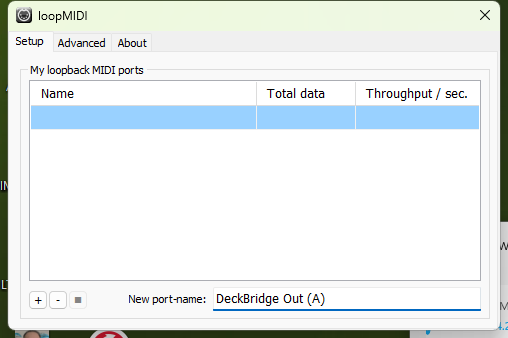
loopMIDI with the first name typed, just before pressing +. Windows MIDI Services: open the MIDI Settings app. First, under Global MIDI settings → Configuration file, press Create new and then Use this file - without an active configuration file Windows can't remember your ports, and they vanish after a restart. Then go to MIDI 2.0 Loopback Endpoints, and press Create New Loopback Endpoint Pair twice - once with base name
DeckBridge Outand once withDeckBridge In. The app appends(A)/(B)automatically. Leave Retain this loopback pair across service restarts/reboots on. If you made pairs before activating a configuration file, delete and recreate them.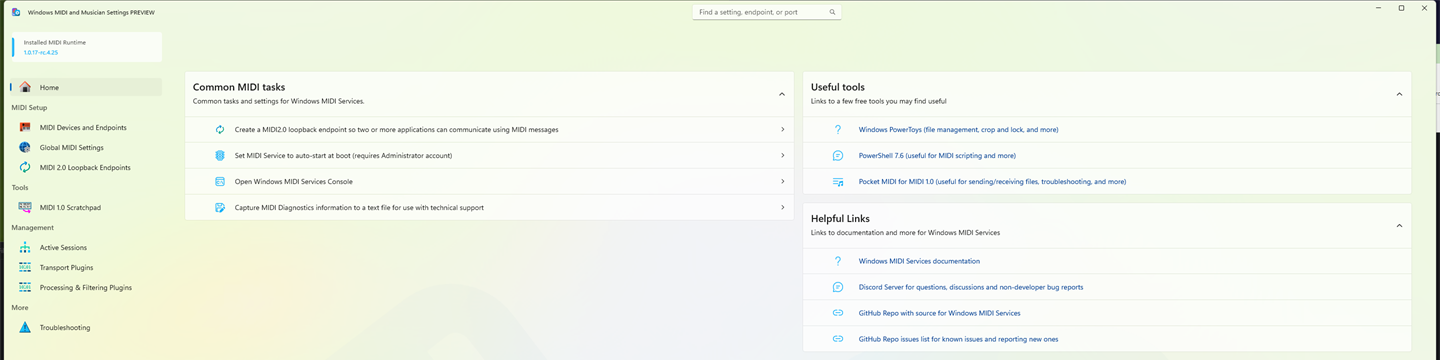
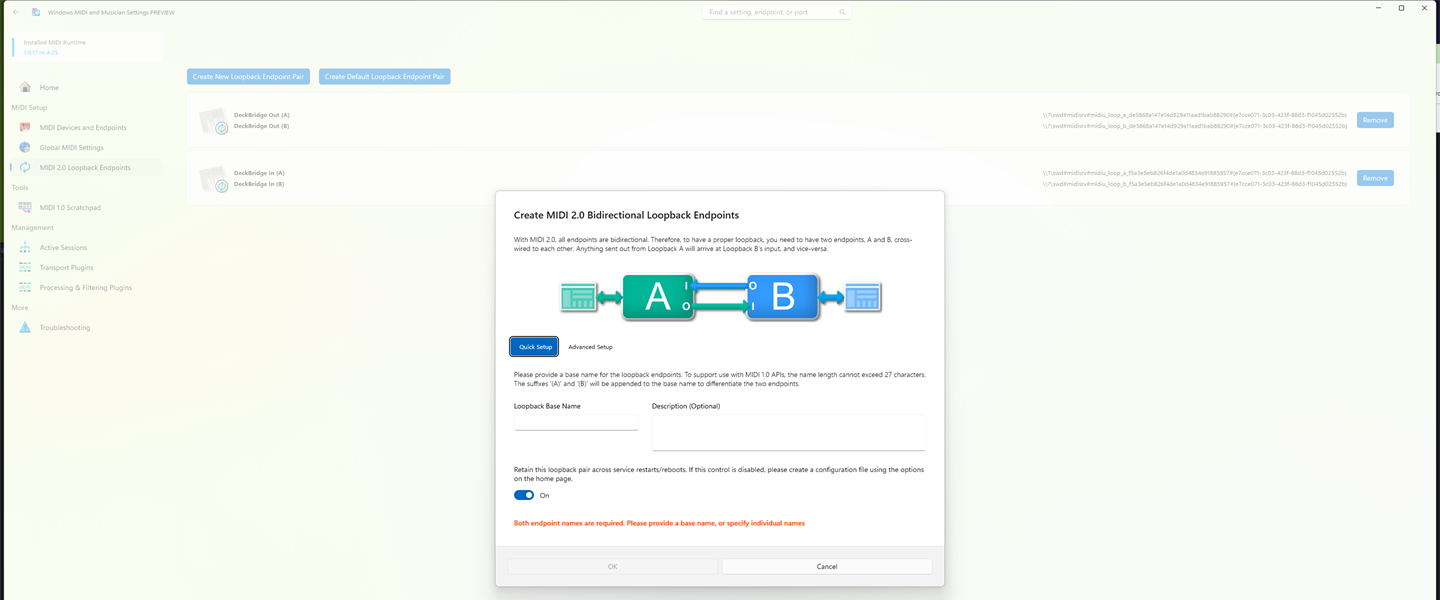
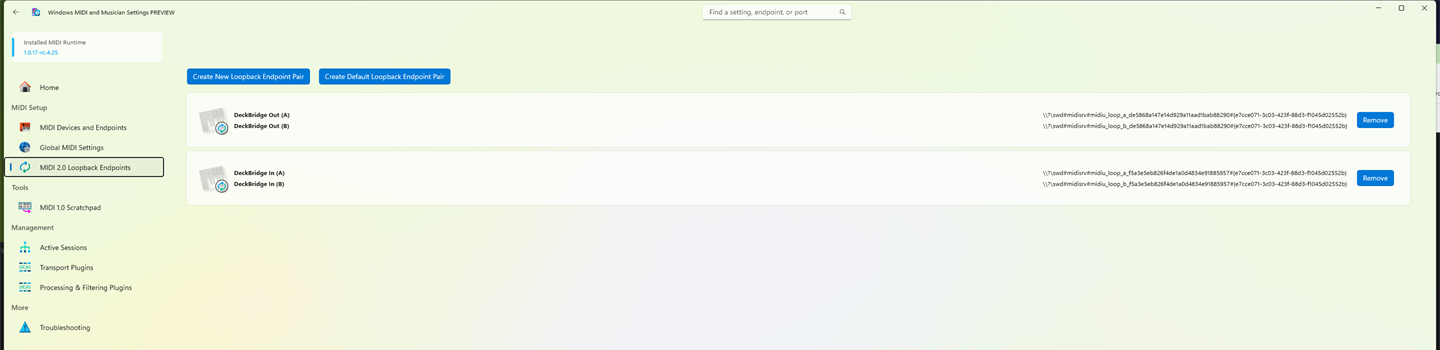
Windows MIDI Services - the MIDI Settings app (top), the Create New Loopback Endpoint Pair dialog (middle), and both DeckBridge pairs listed (bottom). -
Open Resolve and point it at the ports
Now open Resolve, then DaVinci Resolve → Preferences → System → Control Panels. Under Audio Console, tick Use MIDI audio console, set MIDI Protocol to MCU compatible, then:
Your tool MIDI Input MIDI Output loopMIDI DeckBridge Out (A)DeckBridge In (A)Windows MIDI Services DeckBridge Out (B)DeckBridge In (B)Windows may add a number to the end (
DeckBridge Out (B) 3) - that's fine. Press Save.
Resolve on Windows, set up with Windows MIDI Services (the (B)ports). With loopMIDI, pick the(A)ports instead. -
Check DeckBridge found them

If the Status key still reads Install MIDI, DeckBridge can't see the ports. Open the Status key's settings in the Stream Deck app: MIDI out should show
DeckBridge Out (A)and MIDI inDeckBridge In (A). Named them differently, or reusing an existing loopback? Just pick your ports from those two dropdowns. -
Restart Resolve once
The Status key goes green. Not green after a minute? Restart the Stream Deck app so DeckBridge rescans the ports.
Without MIDI at all, DeckBridge still does everything except moving faders and lighting transport LEDs - and says so on the tile instead of pretending.
Open Resolve

An amber Open Resolve tile means DaVinci Resolve isn't running - everything on the deck dims to say "waiting", and springs back the moment Resolve is up. On macOS, pressing any transport key while Resolve is closed launches it.
Keys also stay dimmed while Resolve is open with no project or timeline - a transport press with nothing to control would land keystrokes in the wrong place, so DeckBridge refuses honestly instead.
Start Bridge

On Resolve Free 21.1+, skip this step - there's no bridge; DeckBridge reads Resolve's window automatically. Expect the amber Ready state. See the FAQ for what's different on 21.1+.
Resolve Free doesn't expose the external scripting API, so DeckBridge installs a tiny bridge script inside Resolve itself (it lives in Resolve's own Scripts menu) and starts it for you automatically - on macOS and Windows alike. The amber tile appears only when that automation needs a hand. Two known causes:
- macOS Automation permission (separate from the Accessibility grant in step 3): starting the bridge for you needs permission to control Resolve's menus. Allow it under System Settings → Privacy & Security → Automation → Elgato Stream Deck → System Events. DeckBridge picks the grant up within seconds - no restart needed. While the permission is denied, DeckBridge deliberately stops trying to bring Resolve forward.
- A modal dialog open in Resolve blocks its menus - close any open dialog, or run Workspace → Scripts → DeckBridge yourself (one click)
The tile clears as soon as the bridge answers - a couple of seconds.

Upgrades handle themselves: an out-of-date bridge left running inside Resolve is detected, retired and replaced automatically.
Your keymap - nothing to configure
DeckBridge reads the keymap you already use, directly from Resolve's own preference files: built-in presets (DaVinci, Premiere, FCP, Avid, Pro Tools) and fully custom ones alike. Rebind a command in Resolve's Keyboard Customization, save, and the deck follows within seconds - no restart, no re-mapping.
- Your keys, in the Page & Settings dial's inspector, shows exactly what was read and from where
- Exported
.txtpresets can be imported manually as an override - useful for shared machines or locked-down prefs

Profiles & the Command picker
DeckBridge ships a profile per Resolve page, and the deck follows Resolve between them. To customize a page, flip Resolve to it and edit what you see - changes stay scoped to that page, and a profile can grow extra Stream Deck pages of its own (more Fader Pairs for Fairlight, say).
Every keystroke-accessible Resolve command - all 1055 of them - is available via the Command action: drag it onto any key, search the picker, done. Commands without a binding in your keymap render greyed and light up the moment you assign one in Resolve.

Tile states reference
Every state the Status key can show, what it means, and where it sends you:
| Tile | Meaning | Fix |
|---|---|---|
| Grant Access | macOS Accessibility not granted - keystrokes are impossible | §3 |
| Install MIDI (Windows) | No DeckBridge loopback ports found - create them, or pick your own in the Status key settings | §4 |
| Install MIDI after a restart (Windows MIDI Services) | Your loopback ports disappear when Windows restarts, or the loopback page says Not saved - no configuration file is active | §4: Create new, then Use this file, then recreate the pairs |
| Enable MIDI | MIDI not yet commissioned - waiting for your one-time consent | §4 |
| Open Resolve | Resolve isn't running (or has no project/timeline open) | §5 |
| MIDI Setup (amber) | A MIDI write failed and your original config was restored intact | §4, §10 |
| MIDI Setup (red) | Restore couldn't be verified - your backup is safe, we should talk | §10 |
| Start Bridge | Resolve Free: the in-Resolve bridge isn't running | §6 |
| Green check | Everything works | - |
| Amber Ready (straight line, not the sawtooth) | Resolve Free 21.1+: DeckBridge is reading Resolve via the accessibility reader - amber is the healthy, expected state on that edition | §6 |
Copy Diagnostics
Every property inspector has a Copy Diagnostics button: one click copies a plain-text snapshot - plugin and Resolve versions, channel health, your active keymap, the last MIDI error if any, and the last 50 log lines. Paste it into an email to support@deckbridge.io; we can usually answer from that alone. Nothing is ever sent automatically - DeckBridge has no telemetry.
DeckBridge diagnostics
plugin: 1.0.6 - os: darwin 25.5.0
midi commission: ok - source: studio
channels: {"api":true,"midi":true} - keymap: auto (My Keys) Uninstall
Before removing the plugin, press Remove DeckBridge data… in the Status key's or Page & Settings dial's inspector (add one from the action list if neither is placed): it de-commissions the MIDI buses (restoring your pristine backup), removes the bridge script from Resolve, and deletes all app data. Then uninstall from the Stream Deck app as usual. Full manual steps live on the support page.