DeckBridge for DaVinci Resolve
User Manual
Every DaVinci Resolve command on your Stream Deck - live.
1. Welcome
DeckBridge puts DaVinci Resolve on your Stream Deck as a native plugin, not a profile pack. A profile pack is a bag of static hotkeys; DeckBridge holds a live connection to Resolve. Keys light with Resolve's real playback state, timecode streams to a dial, the Fairlight mixer echoes real fader levels, and the deck re-skins as you move between Resolve's pages.
Every keyboard-accessible Resolve command - all 1055 of them - can be placed on any key. When a key fires, it presses your active keymap's shortcut, not a hardcoded one: rebind a command in Resolve's Keyboard Customization and the deck follows within seconds. Commands with no binding render greyed instead of firing the wrong thing.
DeckBridge has no telemetry. Nothing leaves your machine unless you copy and paste it yourself (section 10.3).
2. Requirements & compatibility
| Operating system | macOS 13 or later · Windows 11. Windows 10 runs keystroke-only, best effort (no mixer or timecode over MIDI). |
|---|---|
| DaVinci Resolve | Free and Studio, versions 19, 20 and 21. Free 21.1+ reads Resolve differently - see section 6. |
| Stream Deck app | Version 7.1 or later. |
| Stream Deck devices | Stream Deck +, MK.2, XL, Mini, Neo, Studio, + XL and Galleon 100 SD - each with curated starting profiles (section 9). Dial and touch-strip features need a deck with dials (Stream Deck +, + XL, Studio, Galleon 100 SD). |
Newer Resolve versions than the tested band still work in most cases - diagnostics carry a gentle untested-version note rather than refusing.
3. Installation
Get DeckBridge from the Elgato Marketplace. One click installs it into the Stream Deck app, on macOS and Windows alike - there is no separate installer.

On install, the Stream Deck app lays down the DeckBridge profiles for your device - one per Resolve page (Edit, Color, Fairlight, and the rest). Your deck is populated instantly: transport cluster, the Status key (and on button-only decks the Timecode corner tile beside it), and - on dial decks - the page and mixer dials. As Resolve changes pages, the deck switches to that page's profile by itself. Every profile is a starting point, not a cage: edit the Color profile and only Color changes, and any profile can grow extra Stream Deck pages of its own (section 9). A deck plugged in later is offered its profiles automatically, once.


From the first launch, the Status key on your deck is the setup guide's index: whenever something needs you, the tile names it, and pressing the key opens the matching guide section in your browser. A green check means everything works. (Every settings panel also carries an Open Setup Guide button - DeckBridge never opens a browser by itself.)
4. Setup on macOS
4.1 The Accessibility permission
Most people never see this step. DeckBridge presses keys on Resolve's behalf, which macOS gates behind the Accessibility permission - granted to the Stream Deck app (DeckBridge runs inside it), which usually already has it for its own Hotkey actions. A red Grant Access tile appears only when the permission is genuinely missing: a fresh Stream Deck install, a declined prompt, or a macOS upgrade that reset it.
On a fresh install, macOS asks first with its own dialog - "Stream Deck" would like to control this computer using accessibility features. Choosing Open System Settings from it lands directly on the right pane. If it was dismissed or declined, the steps by hand:
- Open System Settings → Privacy & Security → Accessibility
- Enable Elgato Stream Deck (add it with + if it isn't listed)
- Relaunch the Stream Deck app so the granted permission takes effect

DeckBridge never sends a keystroke while this tile is red - a key that can't reach Resolve does nothing rather than typing into whatever has focus.
4.2 Enable MIDI (optional)
Everything else already works without this step - transport, every command, page following and timecode (Studio and Free ≤21.0; see section 6 for Free 21.1+) need no MIDI at all. MIDI adds the extras: faders you can turn from the deck and transport keys that light with Resolve's real playback state. Skip it freely and come back whenever.
Nothing touches your MIDI configuration until you press the amber Enable MIDI tile on the deck - it's the Status key (bottom-right on a Stream Deck +), which reads Enable MIDI until MIDI is set up.
Press it with Resolve closed. Enable MIDI restarts the macOS MIDI service, which can crash a running Resolve - especially with its Preferences window open. That's why the deck shows Enable MIDI before Open Resolve. Quit Resolve first if it's running.
Pressing it once:
- stores a timestamped backup of your pristine MIDI configuration first, kept in DeckBridge's data folder until you uninstall, and restorable from there at any time (deleting that folder yourself removes the backup - uninstall still removes DeckBridge's own buses cleanly and leaves your devices untouched, but can no longer tell whether the IAC Driver was enabled before);
- creates two persistent IAC buses -
DeckBridge OutandDeckBridge In- in about two seconds; - survives every future restart of Resolve, the Stream Deck app, and your Mac. Until you press it, MIDI runs on a temporary port that Resolve must re-bind after each restart.

4.3 Point Resolve at the buses
- In Resolve, open DaVinci Resolve → Preferences → System → Control Panels
- Under Audio Console, tick Use MIDI audio console, set MIDI
Protocol to MCU compatible, then MIDI Input to
IAC Driver
          DeckBridge Out
and MIDI Output toIAC Driver DeckBridge In. Leave Select this console for Fairlight on None. - Press Save and restart Resolve once. The Status key goes green and stays green across every future restart.
If the tile turns amber and reads MIDI Setup instead, a MIDI change failed and DeckBridge restored your original configuration exactly as it was. Quit Resolve and press the tile again; if it stays amber, send us Copy Diagnostics (section 10).

5. Setup on Windows
As on macOS, MIDI is the optional extra: without it, transport, all 1055 commands, timecode (Studio and Free ≤21.0; see section 6 for Free 21.1+) and page following still work over keystrokes - only the mixer faders and transport lights are off, and the deck says so honestly instead of pretending. Unlike macOS there is no Enable MIDI press, and DeckBridge cannot create the loopback for you either: Windows keeps MIDI-loopback creation out of app reach, so you install a small tool once and create the loopback yourself, before you open Resolve - Resolve may not list ports created while it's running until you restart it. Name the ports as shown below and DeckBridge finds them on its own; any other name still works fine, you just pick your ports in DeckBridge's settings yourself.
5.1 Option A: Windows MIDI Services
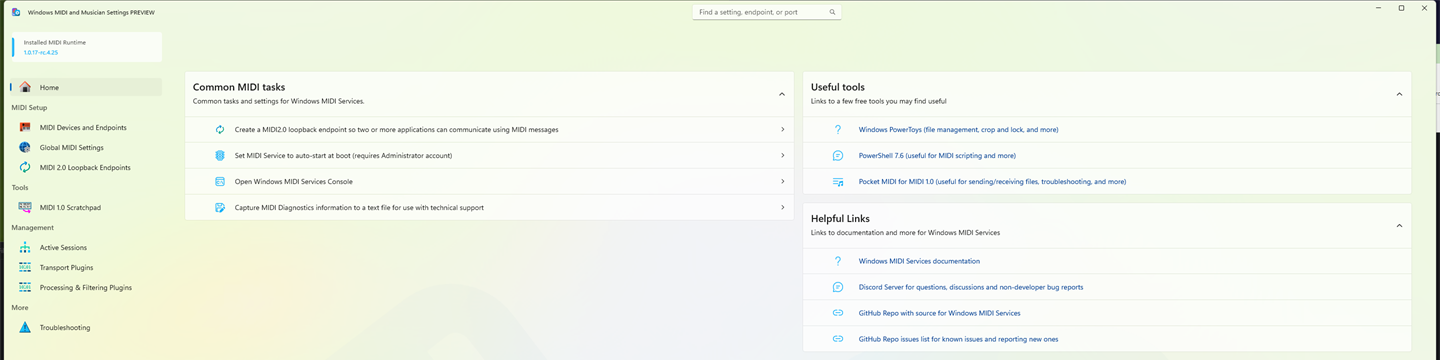
Windows MIDI Services (WMS) is Microsoft's own MIDI stack and the
official long-term path. Its loopback tools (the Settings app's MIDI panel,
midi.exe, and PowerShell cmdlets) currently ship as a separate
SDK Runtime & Tools package - download
from Microsoft's releases page (docs at microsoft.github.io/MIDI).
That package is still Release Candidate and not on a stock Windows PC yet; it's
due to ship built into Windows 11 25H2, rolling out from around late 2026.
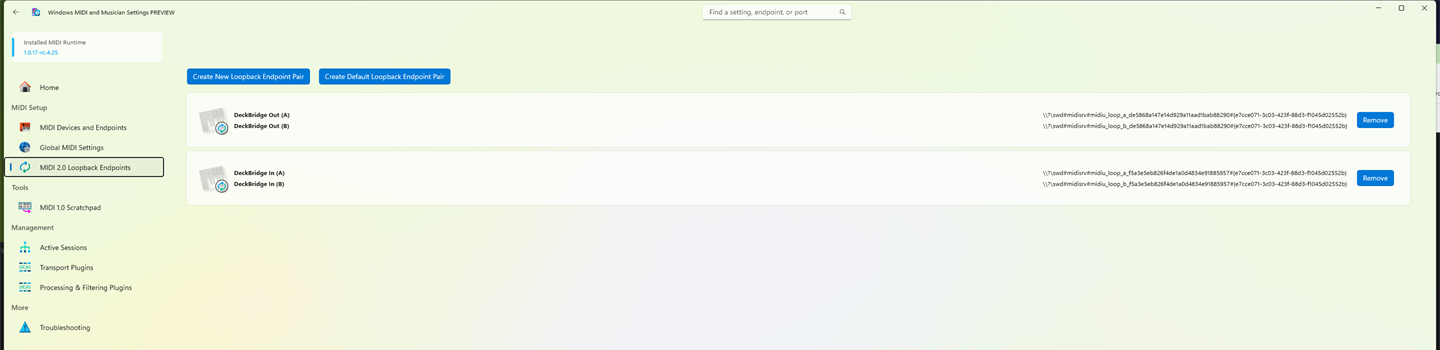
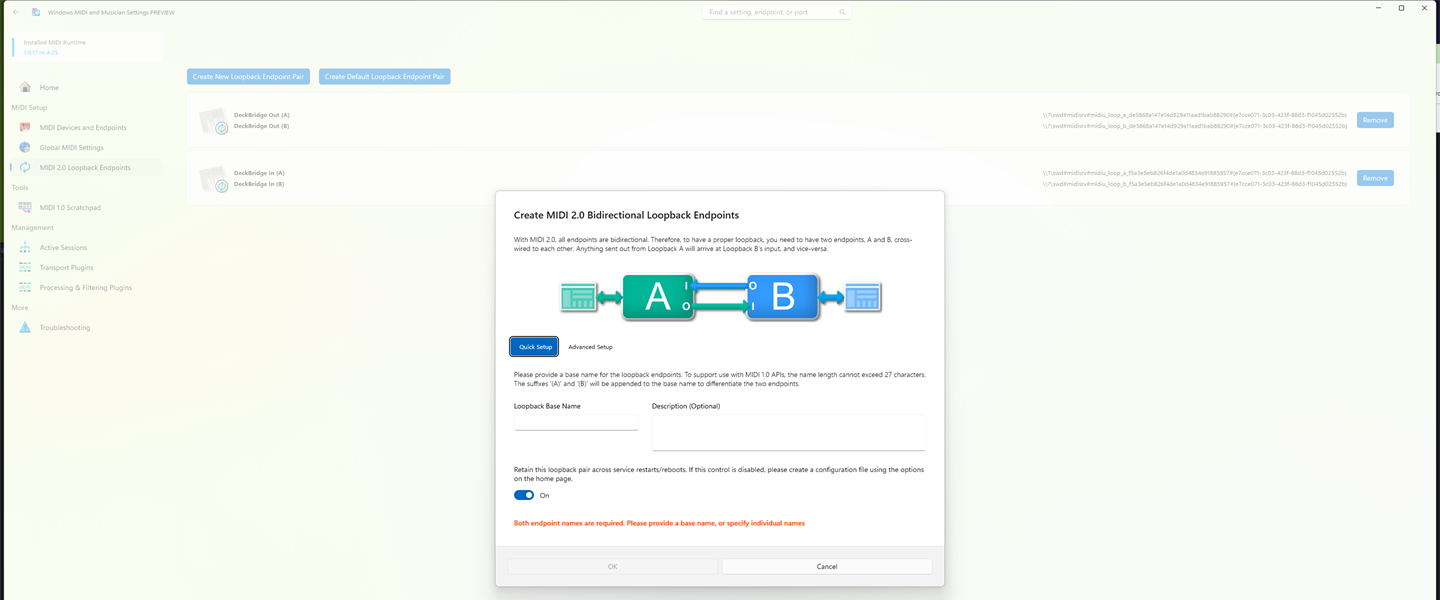
Install the tools, open the MIDI panel, and create two loopback pairs
with the names DeckBridge Out and DeckBridge In - the
app appends (A)/(B) to each pair automatically.
DeckBridge finds the (A) ends on its own.
5.2 Option B: loopMIDI
loopMIDI,
by Tobias Erichsen, is free, small, and works on every Windows version today -
no waiting for 25H2. Install it, then create two ports named exactly
DeckBridge Out (A) and DeckBridge In (A). loopMIDI
loops each port back to itself, so there's no (B) side: DeckBridge
and Resolve both use the same two (A) ports (§5.3). DeckBridge finds
them automatically by name, same as with WMS.
loopMIDI's ports only exist while loopMIDI is running. Set it to start with Windows (its tray-icon menu has an autostart option), or the faders stop after your next reboot.
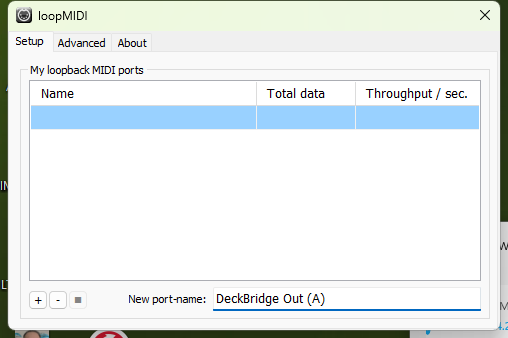
DeckBridge Out (A) into
New port-name and press +, then repeat for
DeckBridge In (A). Both ports then appear in the list.5.3 Point Resolve at the ports
In Resolve, open DaVinci Resolve → Preferences → System → Control Panels.
Under Audio Console, tick Use MIDI audio console, set MIDI
Protocol to MCU compatible, then pick the ports for your tool (Windows
may add a number to the end, such as DeckBridge Out (B) 3 - that's
fine):
| Tool | Resolve MIDI In | Resolve MIDI Out |
|---|---|---|
| Windows MIDI Services | DeckBridge Out (B) | DeckBridge In (B) |
| loopMIDI | DeckBridge Out (A) | DeckBridge In (A) |
The crossover is deliberate: the port DeckBridge writes
("DeckBridge Out") is the one Resolve reads, and vice versa. Press
Save. Then in the Stream Deck app, open the Status key's settings: if
you used the names above, DeckBridge has already selected
DeckBridge Out (A) as MIDI out and DeckBridge In
(A) as MIDI in - check they match, or pick them yourself if they
don't. (While it can't see any ports, the Status key reads Install
MIDI.) Restart Resolve once and the Status key goes green; if it isn't green
after a minute, restart the Stream Deck app so DeckBridge rescans the ports.

(B) ports). With loopMIDI, pick the (A) ports
instead.5.4 Naming, auto-detect and manual selection
DeckBridge looks for a port whose name contains "DeckBridge Out (A)" to write to, and one containing "DeckBridge In (A)" to read from - a case-insensitive match, not an exact one, so Windows' own numbering (extra trailing digits, say) doesn't break it. That's the whole trick behind §5.1 and §5.2's exact names: name your ports that way and DeckBridge wires itself up with no further clicks.
Prefer different names, or already have a loopback pair from something else? Name them anything you like and just select them yourself in the Status key's settings - DeckBridge's MIDI In/Out dropdowns list every port Windows knows about. Either route only affects the mixer faders and transport lights; everything keystroke-driven keeps working with no MIDI at all.
6. Resolve Free vs Studio
DeckBridge reads Resolve's live state three different ways, depending on edition and version:
| Studio | Free, up to 21.0 | Free, 21.1+ | |
|---|---|---|---|
| How DeckBridge reads Resolve | Scripting API, direct | Bundled bridge script | Accessibility reader - no bridge installed |
| Link dot | Green | Green | Amber - by design |
| Page, timeline & mixer state | Live | Live | Live |
| Keys & transport | Live | Live | Live |
| Track names | Your real names | Your real names | Resolve's defaults (Audio 1, Audio 2… Main) |
| Timecode | Live | Live | Dashes - no readable playhead |
Studio exposes an external scripting API; DeckBridge connects to it directly. Nothing extra to do. Free up to 21.0 has no external API, so DeckBridge installs a tiny bridge script inside Resolve itself - it lives in Resolve's own Workspace → Scripts menu - and starts it for you automatically, on macOS and Windows alike. Free 21.1+ removed Resolve's scripting host entirely, so DeckBridge reads Resolve's window through the operating system's accessibility layer instead - call this the accessibility reader: there is no bridge script to install or start, and no scripting API for it to read a playhead from - which is why timecode shows dashes there (section 7.5/7.8, and the FAQ).
The amber Start Bridge tile (Free up to 21.0 only) appears only when that automation needs a hand - most commonly because a modal dialog is open in Resolve, which makes Resolve's menus silently inert. Close any open dialog, or run Workspace → Scripts → DeckBridge yourself (one click); the tile clears within a couple of seconds. Upgrades handle themselves: an out-of-date bridge left running inside Resolve is detected, retired and replaced automatically.

During video-page playback, Resolve Free (up to 21.0) suspends its script host entirely; the timecode readout switches to an amber freeroll estimate and re-anchors exactly on stop. This is by design, on Studio too (section 10.2) - and is a separate, temporary amber from the permanent amber link dot on Free 21.1+ described above.
DeckBridge recommends Resolve Studio for all features - live timecode and your real track names included.
7. Using DeckBridge - the actions
DeckBridge ships ten actions. Drag any of them from the Stream Deck app's action list onto any key or dial; the starting profiles (section 9) pre-place the most useful arrangement per device. Actions marked dial require a deck with dials (Stream Deck +, + XL, Studio, Galleon 100 SD) - on button-only decks they don't appear in the action list.
7.1 Transport key
Play, stop, in/out marks and every transport keystroke - keys light with Resolve's real playback state (over MIDI, section 4.2/5). In the bundled per-page profiles each key is pinned to its page's control. Dropped into your own profile with no command assigned, a Transport key instead morphs with Resolve's page: the same physical key re-skins as you move Edit → Color → Fairlight. The settings panel also offers label and icon overrides and a per-command key override.


7.2 Command key
Any DaVinci Resolve command on a key. Open the key's settings and search the picker across the full keyboard-customization inventory - all 1055 commands. The key fires your active keymap's shortcut for that command at press time. Commands with no binding in your keymap render greyed and light up by themselves the moment you assign one in Resolve (section 8).


7.3 Command Dial dial
A ± command pair on a dial - printer lights, stills, versions, nodes. Rotate to fire the plus/minus commands; hold and rotate to fire the quarter-step variants where they exist; a press-and-release without rotation fires an optional third command. The dial's LCD ring echoes your input and lights the firing side briefly.

7.4 Mixer dial
A live Fairlight channel strip on a dial: rotate for the fader, press to mute, with real levels echoed back from Resolve over MIDI. The touch strip segment shows the strip's name and level, and its M / S / R letters are tap targets: tap the strip to mute, solo or record-arm without leaving the deck. The fader step per detent is adjustable in the dial's settings (0.5–10%, default 2%). On the Color page the mixer dials morph into Red/Green/Blue printer-light knobs.
On Resolve Free 21.1+ the strip name shows Resolve's default
(Audio 1, Audio 2… Main) rather than your
session's real track name - naming needs the scripting API, which that edition
doesn't expose. Levels, mute, solo and record-arm all stay live regardless
(section 6).


7.5 Timecode Dial dial
Live timeline timecode on the touch strip; rotate the dial to jog the playhead. The readout's colour flags exact versus estimated: during playback Resolve's API goes quiet, so the timecode freerolls (shown amber) and re-anchors exactly on stop. Jogging stops when the dial stops - no trailing queue of keystrokes.
On Resolve Free 21.1+ this readout shows dashes instead, always - that edition exposes no readable playhead for DeckBridge to display (section 6, FAQ). That's a different, permanent state from the transient amber freeroll above, which is Studio and Free ≤21.0 only.


7.6 Page & Settings dial
Follows Resolve's current page and doubles as a status panel: its LCD shows the page Resolve reports plus API and MIDI health dots. Rotate to jog the playhead; press-and-rotate to switch Resolve pages (a bare press deliberately does nothing - play lives on the transport keys). A page change made anywhere - this dial, a keyboard shortcut, Resolve's own page bar - is reflected within a tick. Its settings panel is the plugin's settings home, shared with the Status key (section 7.7): MIDI port selection, keymap import, the "Your keys" readout, Copy Diagnostics, "Reinstall default profiles" (section 9), and the "Remove DeckBridge data…" button all live here.

7.7 Status key (was "Setup & Status")
Shows the single worst thing that still needs setting up - Accessibility, Resolve, MIDI, bridge - and fixes or explains it on press. The tile wears the DeckBridge bridge mark: green deck line when everything works, an amber or red sawtooth deck line when something needs fixing, and a dimmed mark with its eyes closed (and a Zz) while Resolve is asleep. In the amber Enable MIDI state, the press itself performs the commissioning (macOS); in every other state, the press opens the setup guide at the matching section. Hold (about half a second) for the deck's next page of keys - the tile's right-edge chevron - so a profile with extra Stream Deck pages stays navigable on decks whose layout has no room for the app's page keys. Its settings panel is the plugin's settings home, the same panel as Page & Settings (section 7.6). The full state table is in section 10.1.


7.8 Timecode key (was "Status")
The dial-less deck's status panel: live timecode, current page, and connection health on one key. Tap for the next Resolve page (Edit → Color → …); hold (about half a second) for the deck's previous page of keys - the tile's left-edge chevron. In the bundled button-deck profiles it sits bottom-left, with the Status key bottom-right, so the two corner tiles page the deck left and right when you add extra Stream Deck pages to a profile.
On Resolve Free 21.1+ the timecode half of this tile shows dashes, always - no readable playhead exists on that edition (section 6, FAQ). Page and connection health stay live.

7.9 Jog key
Frame-stepping on a button deck, placed as a back/forward pair. On the Edit page: tap for one frame, hold to accelerate. On other pages it morphs into that page's natural prev/next - markers, stills, keyframes, in/out - because bare arrow-key frame steps only act on the Edit page. A newly added Jog key goes forward; set Direction to Back in its settings for the other half of the pair.


7.10 Fader Pair key
A mixer fader on buttons. Place two side by side and they draw one fader across both keys - left steps down, right steps up; tap for one step, hold to repeat, and press both halves together to toggle mute. Pick the strip in the left key's settings. The top-right corner wears the strip's live state as coloured letters - grey M muted, green S soloed, red R record-armed - straight from Resolve's mixer (MIDI required). A key on its own shows the fader level with tap-to-mute. On the Color page the pair becomes a printer-light control - Master by default, or any of the seven lights via the left key's Printer light setting; the pair wears that light's colour, so a Master/Red/Green/Blue bank reads at a glance.


8. Importing your keymap
Normally there is nothing to configure. DeckBridge reads the keymap you already use directly from Resolve's own preference files - built-in presets (DaVinci, Premiere, FCP, Avid, Pro Tools) and fully custom ones alike. Rebind a command in Resolve's Keyboard Customization, save, and the deck follows within seconds; no restart, no re-mapping. This is also why keys grey out: a greyed command key means that command has no binding in your active keymap - assign one in Resolve and the key lights up by itself.
For shared machines or locked-down preferences, an exported preset can be imported manually as an override:
- In Resolve's Keyboard Customization, export your preset as a
.txtfile - In the Page & Settings inspector (section 7.6), point the keymap import field at that file
- The Your keys panel shows exactly what was read and from where; the ✕ next to a manual import removes it and returns to automatic reading
The importer is strict on purpose: a malformed file is rejected whole and DeckBridge falls back to its shipped defaults - never a partial import, never wrong keys.

9. Device profiles
Each supported device gets a curated profile per Resolve page - eight profiles named after the pages (Media, Cut, Edit, Fusion, Color, Fairlight, Deliver, Photo). As Resolve changes pages, the deck switches to the matching profile by itself. This is what makes customization safe and scoped:
- Edit the page you're on. Flip Resolve to Color, change any key on the Color profile - move it, swap it, drop a third-party action on it - and only Color changes. Every other page keeps its layout.
- Add pages within a mode. A profile can grow extra Stream Deck pages (the app's + under the key grid) - say two more pages of Fader Pairs for a big Fairlight session. The deck remembers which page of a profile you were on and returns to it. On key-only decks, hold the corner tiles (about a third of a second) to navigate: Timecode (bottom-left) for the previous page of keys, Status (bottom-right) for the next - both wrap at the ends, and a profile with a single page shows a brief alert instead. Touch-strip decks swipe.
- Updates never touch your profiles. A plugin update never overwrites an installed profile, so your customizations are safe - which also means a newer build's improved default layout doesn't arrive by itself. To adopt new defaults (or recover a deleted profile), delete the profile in the Stream Deck app's preferences, then press Reinstall default profiles in the Status key's or Page & Settings dial's settings panel and approve the app's install prompts - one per profile. Profiles still installed are left untouched.
The per-device starting layouts:
| Stream Deck + | 4×2 keys: the page's transport cluster plus the Status key. All four dials filled: the combined Page & Settings/status dial, then three mixer dials (Red/Grn/Blu printer knobs on Color). The dedicated Timecode Dial action remains available for a big standalone readout. |
|---|---|
| MK.2 (5×3) | Transport cluster on top; the dial behaviours recomposed for buttons on the middle row - Jog back/forward pair and the two-key spanned Fader Pair; the page's command row beneath, bracketed by the corner tiles: Timecode bottom-left, Status bottom-right. |
| XL (8×4) | Transport row on top, then two full rows of page-specific commands that change with Resolve's page - node tools on Color, trim tools on Edit, export and proxy controls on Deliver - and a session row (save, undo, import media, project manager, new timeline) bracketed by Timecode bottom-left and Status bottom-right. |
| Mini (3×2) | Four transport keys plus the Timecode and Status corner tiles. |
| Neo (4×2) | Six transport keys plus the Timecode and Status corner tiles. |
| Studio (16×2) | The XL curation reflowed onto the rack's two long rows; dials carry Page & Settings and a mixer strip. |
| + XL (9×4) | The XL grid plus a live ninth column (Timecode, Jog pair, Status) and six dials: Page & Settings, four mixers, Timecode Dial. |
| Galleon 100 SD (3×4) | Six transport keys, the Timecode/Jog row, two command keys and Status; Page & Settings and mixer dials. |
10. Troubleshooting
10.1 The Status key, state by state
| Tile | Meaning | Fix |
|---|---|---|
 Grant Access | macOS Accessibility not granted - keystrokes are impossible | §4.1 |
| Open Resolve | Resolve isn't running (or has no project/timeline open) | Launch Resolve; the deck lights up on its own |
| Enable MIDI (macOS) | MIDI not yet commissioned - waiting for your one-time consent | §4.2 - press the key |
 MIDI Setup (macOS, amber) | A MIDI write failed; your original configuration was restored intact | §4.2, then try Enable MIDI again |
 MIDI Setup (macOS, red) | The automatic restore could not be verified - your backup is safe; we should talk | §10.3, email us |
 Start Bridge | Resolve Free: the in-Resolve bridge isn't running | §6 |
 Install MIDI (Windows) | No MIDI loopback yet - the mixer and motorised faders are off; keys, commands and page following still work | §5 - install loopMIDI or the Windows MIDI Services tools, create a loopback, and select the ports in DeckBridge |
| MIDI Setup (Windows) | MIDI isn't connected - mixer and fader echo off; keys and timecode still work. Most often the Resolve side isn't pointed at the DeckBridge endpoints | §5.3 first; §5.1/§5.4 if no DeckBridge endpoint is listed at all |
| Green check | Everything works | - |
| Amber Ready (straight line, not the sawtooth) | Resolve Free 21.1+: DeckBridge is reading Resolve via the accessibility reader - amber is the healthy, expected state on that edition (section 6) | None needed |
10.2 Common symptoms
- Faders don't move, keys work fine (Windows). Almost always the MIDI
wiring - check it matches how you made the loopback (section 5). With the
Windows MIDI Services tools, Resolve's MIDI In is
DeckBridge Out (B)and MIDI OutDeckBridge In (B)(the(B)sides). With loopMIDI, both sides use the(A)ports you created - Resolve's MIDI In isDeckBridge Out (A), MIDI OutDeckBridge In (A). Either way In and Out are two different ports, crossed over; restart Resolve after changing it. - Keys (or dials) are greyed. Greyed means "this can't act right now, and pressing won't pretend otherwise": Resolve is closed, no timeline is open, or the command has no binding in your keymap yet (section 8). With Resolve closed the whole surface greys - colour wheels and fader pairs included; only the status readouts stay lit, because their red dots are the "offline" message.
- Play light wrong on the Color/Fusion pages. Resolve doesn't emit the play light on those pages; DeckBridge infers play from your own press, so playback started from the keyboard or UI there isn't reflected until the next stop. Cosmetic.
- Timecode turns amber during playback. Resolve's API goes quiet while playing, so the readout estimates and re-anchors exactly on stop. By design.
- Wiring lost after a Windows reboot. Your loopback ports must be the persistent kind. loopMIDI ports and Windows MIDI Services loopbacks both survive a reboot; a transient endpoint (e.g. one made with the midi.exe console) vanishes on restart. Recreate the loopback with loopMIDI or the MIDI Settings app (section 5) so it persists. If it still recurs, copy diagnostics and email us.
- Holding a corner tile flashes an alert instead of changing the page of keys. The current mode's profile has only one Stream Deck page - there is nowhere to go. Add pages with the app's + under the key grid (section 9) and the hold gesture starts working.
- Timecode always shows dashes. On Resolve Free 21.1+ there is no scripting API or bridge for DeckBridge to read a playhead from - dashes are the honest result, not a fault (section 6, FAQ).
- The link dot is always amber, never green. Expected on Resolve Free 21.1+: DeckBridge is reading Resolve's state through the accessibility reader, which shows amber by design there. Green is reserved for Studio and Free ≤21.0 (section 6, FAQ).
10.3 Copy Diagnostics
Every DeckBridge settings panel has a Copy Diagnostics button. One click copies a plain-text snapshot: plugin and Resolve versions, channel health, your active keymap, the last MIDI error if any, and the last 50 log lines - no media, no project contents, no personal data. Paste it into an email to support@deckbridge.io; we can usually answer from that alone. Nothing is ever sent automatically.

10.4 Log files
Runtime logs live in DeckBridge's app-data directory:
| macOS | ~/Library/Application Support/com.deckbridge.resolve/logs |
|---|---|
| Windows | %APPDATA%\com.deckbridge.resolve\logs |
Copy Diagnostics already includes the tail of the newest log; you rarely need to open these by hand.
11. Uninstalling
The Stream Deck app's uninstall removes the plugin itself but cannot run any cleanup, so do the cleanup first:
- In the Status key's or Page & Settings dial's inspector (neither on your deck? drag one from the DeckBridge action list onto any empty slot first - no other action's inspector has this button), press Remove DeckBridge data… and confirm. This de-commissions the MIDI buses (restoring your original configuration from the pristine backup), removes the bridge script from Resolve, and deletes all DeckBridge app data - in that order, and app data is only deleted once the MIDI restore succeeded.
- Then uninstall the plugin from the Stream Deck app as usual.
- Finally, delete the bundled profiles -
DeckBridge <Device>
          <Page>
, 8 per supported deck - in the Stream Deck app's profile preferences. The Stream Deck SDK offers no profile-delete API, so the cleanup button cannot remove these for you.

Prefer to do it by hand, or removed the plugin first? Delete
~/Library/Application Support/com.deckbridge.resolve (macOS) or
%APPDATA%\com.deckbridge.resolve (Windows); remove DeckBridge
from Resolve's Workspace → Scripts folder; and on macOS delete the two
DeckBridge buses in Audio MIDI Setup → MIDI Studio → IAC Driver.
12. Getting help
One email with one Copy Diagnostics paste usually settles it: support@deckbridge.io - every DeckBridge settings panel also has a Get Support button that opens the support page, which carries the FAQ, a contact form and anything newer than this manual (deckbridge.io/support); the setup guide at deckbridge.io/setup is what the deck's Status key links into.
Purchases, receipts and refunds are handled by Elgato under the Marketplace refund policy - request refunds from your Marketplace account, not by email to us.
Privacy in one line: DeckBridge has no telemetry - nothing leaves your machine unless you paste it.