DeckBridge for Premiere Pro · Setup
From install to Ready.
The Status key on your deck is this guide's index. It shows the next thing to do, and when its tile carries an i, tapping it opens the matching step here. Work through it until it says Ready. You only see the steps that still apply. On Windows, Premiere loads DeckBridge's plug-in only after the device is added, so Add Device comes before Open a Project there.
Your Status key shows one of these at a time, in this order. Tap a tile to jump to its step.
Step 1 · Install
Install
- Stream Deck app 7.1 or newer. Older versions refuse to install the plugin.
- A Stream Deck with bundled profiles: Stream Deck +, Stream Deck MK.2, XL, Mini, Neo, Studio, + XL or Galleon 100 SD.
- macOS 14 Sonoma or newer (Premiere Pro 2026's own minimum), or Windows 11.
- Adobe Premiere Pro. Tested with Premiere Pro 2026 (26.5.2) on Apple Silicon Macs and Windows 11, and on an Intel Mac with a 1.0 pre-release build.
- Premiere Pro in English. Workspace following, custom workspaces and workspace keys read Premiere's English menus. Other languages aren't supported yet.
- Administrator rights, to install DeckBridge's own Premiere plug-in. You're asked again when an update brings a new plug-in and when you remove DeckBridge's data.
Do this
- Get DeckBridge for Premiere Pro from the Elgato Marketplace. The Marketplace installs it into the Stream Deck app, on macOS and Windows. There is no separate installer.
- In the Stream Deck app, pick your deck and choose the profile DeckBridge Premiere … Editing (for example DeckBridge Premiere XL Editing). If the app asks to add the profiles, click Install Profile(s). The profile's bottom-right Status key shows the first setup step - The Status key explains it.
- Close the Stream Deck app's window. While that window is in front, DeckBridge leaves your deck alone so you can edit profiles, so it won't follow Premiere.
- If the Status key turns red, do Grant Access first.
From then on you don't pick profiles. When Premiere comes to the front, the deck moves to its DeckBridge profile by itself. When you leave Premiere, your own profile comes back. See Decks and profiles.
Don't double-click the profile files to import them yourself. That makes a separate copy that the plugin can't switch to or page through.
The Status key
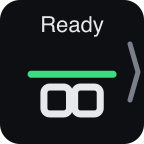
On every bundled profile the Status key is the bottom-right key. It shows the DeckBridge mark with the current state's title above it, one state at a time, the most important first.
| Look | Meaning |
|---|---|
| Red jagged line | Grant Access. This blocks everything. |
| Dimmed, with "zz" | Open Premiere. |
| Amber jagged line, bright | Install Helper or Update Helper. Tapping the key does the job. |
| Amber jagged line, dimmed, with i | Relaunch Premiere, Open a Project, Add Device. Something you do. |
| Green straight line | Ready. |
- An i in the corner means "this is an instruction". The key can't do it for you. Tap it and this guide opens at that step.
- Install Helper and Update Helper have no i. Tapping them starts the install.
- Tapping a green Ready key opens this guide.
- Hold the key (about a third of a second) to go to the next Stream Deck page of keys in the profile. The chevron on its right edge shows this.
- The key follows what you do within about 3 seconds. Right after Premiere opens it can show a step for a moment before it catches up.
After you quit Premiere, the deck goes back to the profile you had before. So you'll only see Open Premiere if you switch to a DeckBridge profile yourself.
Grant Access

Command keys type Premiere's keyboard shortcuts, and macOS only lets the Stream Deck app do that with the Accessibility permission. Without it, command keys can't type into Premiere.
Do this
- Open System SettingsPrivacy & SecurityAccessibility.
- Turn on Stream Deck (it may be listed as Elgato Stream Deck). If it's missing, add it with +.
- Quit the Stream Deck app and open it again.
Tapping the red key opens this page; it can't open System Settings for you.
Open Premiere
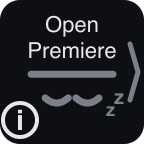
Premiere Pro isn't running. Launch it and the deck lights up on its own.
After you quit Premiere, the deck goes back to your previous profile. That's expected.
Install the Premiere plug-in
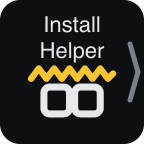
DeckBridge's own Premiere plug-in is needed by the Stream Deck plugin. It gives the deck commands without shortcuts, real track names and workspace following. Without it, only command keys whose command has a keyboard shortcut in Premiere still work. Key: bright amber, Install Helper (or Update Helper, see Updating).
Do this - either way
- Tap Install Helper on the deck, or
- in the Stream Deck app, click the Status key and press Install plug-in (Update plug-in when updating).
macOS asks for an administrator's password: "DeckBridge needs to install its Premiere Pro helper." Enter an administrator's name and password. The plug-in is installed for all users of the Mac, which is why admin rights are needed.
Windows asks for administrator permission (User Account Control), in a prompt naming Windows PowerShell (publisher Microsoft). That's expected: DeckBridge uses it to copy its plug-in into place. Click Yes. If you click No, nothing is installed, the key stays on Install Helper and the panel says "Install cancelled."
- On success the key flashes a check mark and the panel says "Installed."
- On failure the key shows Stream Deck's alert and the panel says "Install failed - see the plugin log." Send us a Copy diagnostics report.
- Cancelled the prompt? Nothing happens. Tap again when you're ready.
- The panel said "Installed." but the key still says Install Helper? Wait up to 30 seconds: the plugin checks again.
Then restart Premiere: the key says Relaunch Premiere.
Relaunch Premiere
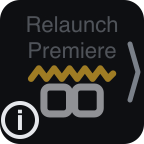
The plug-in was installed or updated while Premiere was running, so Premiere still has the old one (or none) loaded. Quit Premiere completely and open it again.
Open a Project
Premiere has loaded DeckBridge's plug-in, which connects once a project is open. The Home screen isn't enough. Open or create a project. The key comes back to this state when you close your project.
- Until a project is open, DeckBridge's command, Transport and Command Dial controls are dimmed, and pressing one shows Stream Deck's alert.
- When Premiere comes to the front on its Home screen, the deck goes to the Editing profile. When you close a project, the deck stays on the profile it was showing, and the key says Open a Project within a few seconds.
- Project open and the key still says Open a Project? Do Add Device.
For the first few seconds after Premiere opens, the key may say Open a Project while Premiere is still loading the plug-in.
Add Device
DeckBridge hasn't been added as a control surface in Premiere yet.
Do this
- Open Premiere ProSettingsControl Surface.
- Open EditPreferencesControl Surface.
- Click Add, set Device Class to DeckBridge, then click OK.
With a project open, the deck goes live within a few seconds. Premiere remembers the device across restarts, plug-in updates and reinstalls, so you add it once.
- Premiere loads DeckBridge's plug-in only once the device is added, so the key says Add Device before you open a project. Right after Premiere starts it says Open a Project for a few seconds first.
- If you remove DeckBridge from this list while Premiere runs, the key goes back to Add Device.
Ready, and workspace following
A green line means everything works. The Status key's settings say "All good - the deck is fully connected." Tap the key to open this guide.
On a deck without a Timecode dial (MK.2, XL, Mini, Neo), the green key shows the current workspace's name instead of Ready. A name longer than 10 characters is cut short with "…". On a deck with a Timecode dial, the dial shows the workspace and the key says Ready.
Workspace following
- With a project open, switching Premiere's workspace to Editing, Color, Audio or Effects switches every connected deck to its matching DeckBridge profile.
- A workspace you've mapped to a custom slot switches to that slot's profile.
- Any other workspace shows the Editing profile.
- Press the Timecode key, or press and turn the Timecode dial, to step through the workspaces from the deck.
Leaving Premiere
- When you switch to another app or quit Premiere, the deck goes back to the profile it had before (within about 3 seconds), and Stream Deck's Smart Profiles work again.
- The Stream Deck app itself and Premiere's own dialogs don't count as leaving Premiere.
- To keep the DeckBridge profile while you work elsewhere, tick Keep Premiere profile when Premiere isn't focused under Leaving Premiere in the Status key's settings. Quitting Premiere always hands the deck back.
Decks and profiles
Each deck model has its own bundled profiles, named DeckBridge Premiere <deck> <workspace>: Editing, Color, Audio and Effects, plus four Custom profiles that start nearly empty.
| Deck | Profile names start with |
|---|---|
| Stream Deck + | DeckBridge Premiere Plus |
| Stream Deck MK.2 | DeckBridge Premiere MK2 |
| Stream Deck XL | DeckBridge Premiere XL |
| Stream Deck Mini | DeckBridge Premiere Mini |
| Stream Deck Neo | DeckBridge Premiere Neo |
| Stream Deck Studio | DeckBridge Premiere Studio |
| Stream Deck + XL | DeckBridge Premiere Plus XL |
| Galleon 100 SD | DeckBridge Premiere Galleon |
- Every connected deck follows the workspace, each to its own model's profile, including a deck you plug in later.
- Profiles appear as they're needed. A profile is added the first time the plugin switches a deck to it, or all at once when the plugin is installed. The Stream Deck app may ask first with an Install Profile(s) prompt. Click it.
- You don't need to link a profile to Premiere. DeckBridge doesn't use Stream Deck's Smart Profiles. It checks when Premiere is in front, switches your decks to the right profile for the current workspace, and hands them back when you switch to another app. If you've already linked a DeckBridge profile to Premiere, remove the link: the two can fight over the deck.
- Change them like any Stream Deck profile. Add your own keys and pages. Hold the Status key for the next page. You can rename a profile in the Stream Deck app: the plugin still finds it.
- Galleon 100 SD: each dial has two screen layers. Hold a dial for about 3 seconds to switch layer (Stream Deck's own gesture). DeckBridge fills both layers, and a hold that long fires no DeckBridge action.
What each profile puts on the keys and dials is in the manual.
Hardware results so far are from the Stream Deck +, MK.2 and Galleon 100 SD. If you use another model, please send us feedback.
Custom workspaces
Give up to four of your own Premiere workspaces their own deck layout. Each deck model has four spare profiles, DeckBridge Premiere <deck> Custom 1 to Custom 4. They start empty apart from the Status key (bottom right) and the Timecode key (bottom left). On a Stream Deck + the Timecode dial (first dial) takes the Timecode key's place; the Studio, + XL and Galleon 100 SD have both.
Do this
- In the Stream Deck app, click the Status key on any DeckBridge profile to open its settings.
- Under Custom workspaces, type the workspace's name into Custom 1 (or 2, 3, 4) exactly as it appears in Premiere's WindowWorkspaces menu.
- Press Save (or Enter). The panel says Saved ✓. Until then it says "Not saved yet".
- Switch Premiere to that workspace. The deck shows the matching Custom profile. Add your own keys to it.
- Matching ignores capitals and spaces at the start or end of the name.
- A standard name (Editing, Color, Audio, Effects) typed into a slot is ignored. Those workspaces always show their own profiles. A saved copy of a standard workspace, such as "Color – mine", is a workspace of its own and needs a slot.
- The Timecode key and dial step through Editing, Color, Audio and Effects, then your mapped workspaces.
- Clearing a slot and saving frees it. The deck moves at once if Premiere is on that workspace.
Updating
- Plugin updates install over the old version, and the Stream Deck app upgrades it in place. Premiere keeps its DeckBridge device, so there's no need to add it again.
- Update Helper (key: bright amber) appears only when the new version brings a changed Premiere plug-in. Many updates don't, and then nothing is asked. Tap it, approve the password or permission prompt, then quit and reopen Premiere (Relaunch Premiere).
- Your profiles are not updated. Upgrading never replaces the DeckBridge Premiere profiles you already have, so your changes are kept. A profile that is new in this version is added the first time the deck switches to it.
- To get a new version's default layout, delete that DeckBridge Premiere profile in the Stream Deck app, then switch Premiere to another workspace and back: the plugin adds the fresh copy (approve the Install Profile(s) prompt). If it doesn't come back, install the plugin again. That's your call: deleting a profile throws away your own changes, including the keys you added to a Custom profile.
- Settings panels can take several seconds to open the first time after an update. Wait, or click the key again. This is much rarer since 1.0.0.15.
Status key states
Holding the key in any state goes to the next page of keys.
Diagnostics and support
Do this
- In the Stream Deck app, click the Status key.
- Under Diagnostics, press Copy diagnostics. The panel says "Copied ✓".
- Paste the report into an email to support@deckbridge.io with a line on what happened, or use the support form. Every DeckBridge settings panel's Get Support button opens that page with Premiere chosen.
The report holds the plugin, system, Stream Deck app and Premiere versions, your decks, each setup step's
state, the current workspace, your keyboard shortcut layout's name and the last 50 lines of the plugin log.
Your home folder shows as ~. Nothing is sent automatically.
Uninstall
Stream Deck can't run any cleanup when it removes a plugin, so do the cleanup first.
Do this
- Quit Premiere Pro.
- In the Stream Deck app, click the Status key and press Remove DeckBridge data…, then press it again
(it now says Press again to confirm) within 5 seconds.
- If the plug-in is installed, it asks for the administrator password on macOS ("DeckBridge needs to remove its Premiere Pro plug-in."), or for permission on Windows (the same Windows PowerShell prompt as the install).
- It removes DeckBridge's Premiere plug-in, its logs and saved data, hands your decks back to their previous profiles, and resets its settings (Keep Premiere profile and the four custom workspace slots).
- Your Stream Deck profiles stay, and so does the DeckBridge entry in Premiere's Control Surface settings. Remove that entry there if you like (Premiere has to be running for that, so do it before step 1).
- Changed your mind before step 3? The Status key is back on Install Helper. Tap it to reinstall the plug-in. The device is still added in Premiere, so you won't need Add Device again.
- Remove DeckBridge for Premiere in the Stream Deck app: PreferencesPlugins.
- If you like, delete the DeckBridge Premiere profiles from the Stream Deck app's profile list too. Stream Deck leaves them behind when it removes the plugin, and the plugin can't delete them.
What the panel may say
| Message | What to do |
|---|---|
| "Quit Premiere Pro first, then press the button again. Nothing was removed." | Quit Premiere and press again. |
| "Nothing was removed: the permission prompt was cancelled. …" | Press again and approve the prompt. |
| "Nothing was removed: DeckBridge's own Premiere plug-in could not be removed (see the plugin log). …" | Send us a Copy diagnostics report. |
| "Premiere plug-in: switched off; one file is still in use by Premiere …" (Windows) | Quit Premiere and press again to delete the last file. |
| "… Now remove DeckBridge for Premiere in Stream Deck: Preferences → Plugins. …" | Done. Go on to step 3. |
Frequently asked questions
The Stream Deck app won't install the plugin.
Update the Stream Deck app to 7.1 or newer, then install again. Also check your macOS or Windows version
against Install.
Windows asks for permission for "Windows PowerShell". Is that right?
Yes. DeckBridge uses Windows PowerShell to copy its own Premiere plug-in into place, which needs administrator
rights. Click Yes. If you click No, nothing changes and you can tap Install Helper again
(Install the Premiere plug-in).
On macOS the Status key is red and says Grant Access.
The Stream Deck app needs the Accessibility permission to type Premiere's shortcuts. Turn on Stream Deck in
System Settings, then quit and reopen the Stream Deck app (Grant Access).
I installed the plug-in but the key says Relaunch Premiere.
Premiere only loads its plug-ins when it starts. Quit Premiere completely and open it again
(Relaunch Premiere).
On Windows the key says Add Device before I've opened a project.
That's the Windows order: Premiere loads DeckBridge's plug-in only after the device is added. Add it in
Edit → Preferences → Control Surface, then open a project (Add Device).
My project is open, but the key still says Open a Project.
Check that DeckBridge is in Premiere's Control Surface list, and add it if not
(Add Device). In the first few seconds after Premiere starts, the key can show Open a
Project while Premiere is still loading.
Do I need to link a DeckBridge profile to Premiere as a Smart Profile?
No. DeckBridge switches your decks itself when Premiere comes to the front. If you've linked one, remove the
link (Decks and profiles).
The deck keeps going back to my own profile.
That happens whenever another app is in front. Click into Premiere, or tick Keep Premiere profile when
Premiere isn't focused in the Status key's settings (Ready).
I updated the plugin. Do I have to set anything up again?
Usually not. If the Status key says Update Helper, tap it, approve the prompt and restart Premiere. The device
stays added in Premiere (Updating).
I updated, but my deck still has the old layout.
Updates never replace a profile you already have, so your changes are safe. Delete that DeckBridge Premiere
profile in the Stream Deck app, then switch Premiere to another workspace and back
(Updating).
A settings panel takes a few seconds to open.
That's the Stream Deck app, mostly the first time after a plugin update. Wait, or click the key again
(Updating).
Remove DeckBridge data says "Quit Premiere Pro first".
Premiere holds DeckBridge's plug-in open while it runs. Quit Premiere and press the button again. Nothing was
removed (Uninstall).
I removed the plugin, but the DeckBridge Premiere profiles are still there.
Stream Deck leaves profiles behind when it removes a plugin, and the plugin can't delete them. Delete them in
the Stream Deck app's profile list (Uninstall).