Live · macOS & Windows
Every Premiere workspace.
One deck. Live.
DeckBridge for Premiere Pro is a Stream Deck plugin - not a profile pack. Transport, timecode, mixer and command control for Adobe Premiere Pro, on a Stream Deck that switches with Premiere's workspaces.
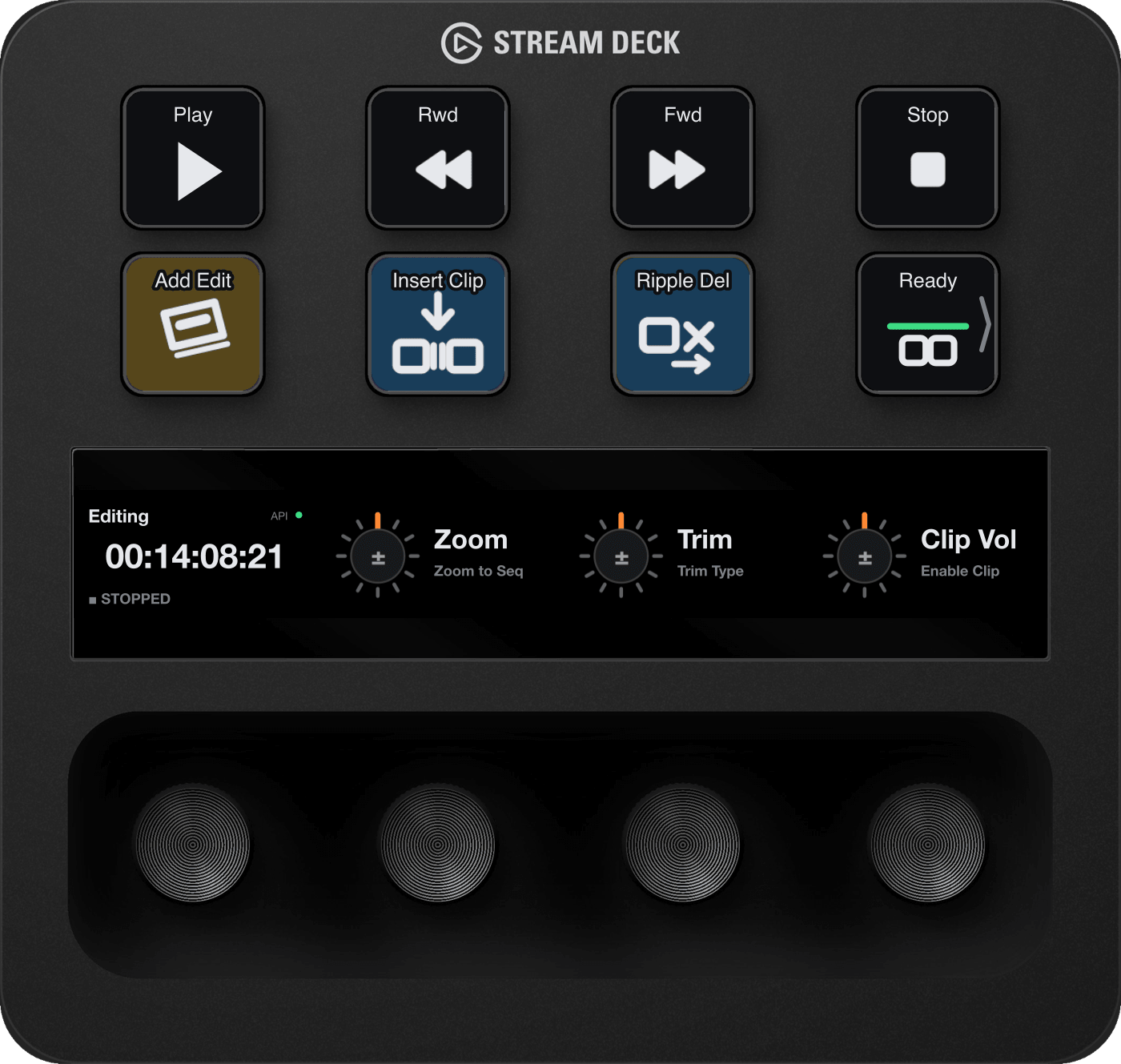
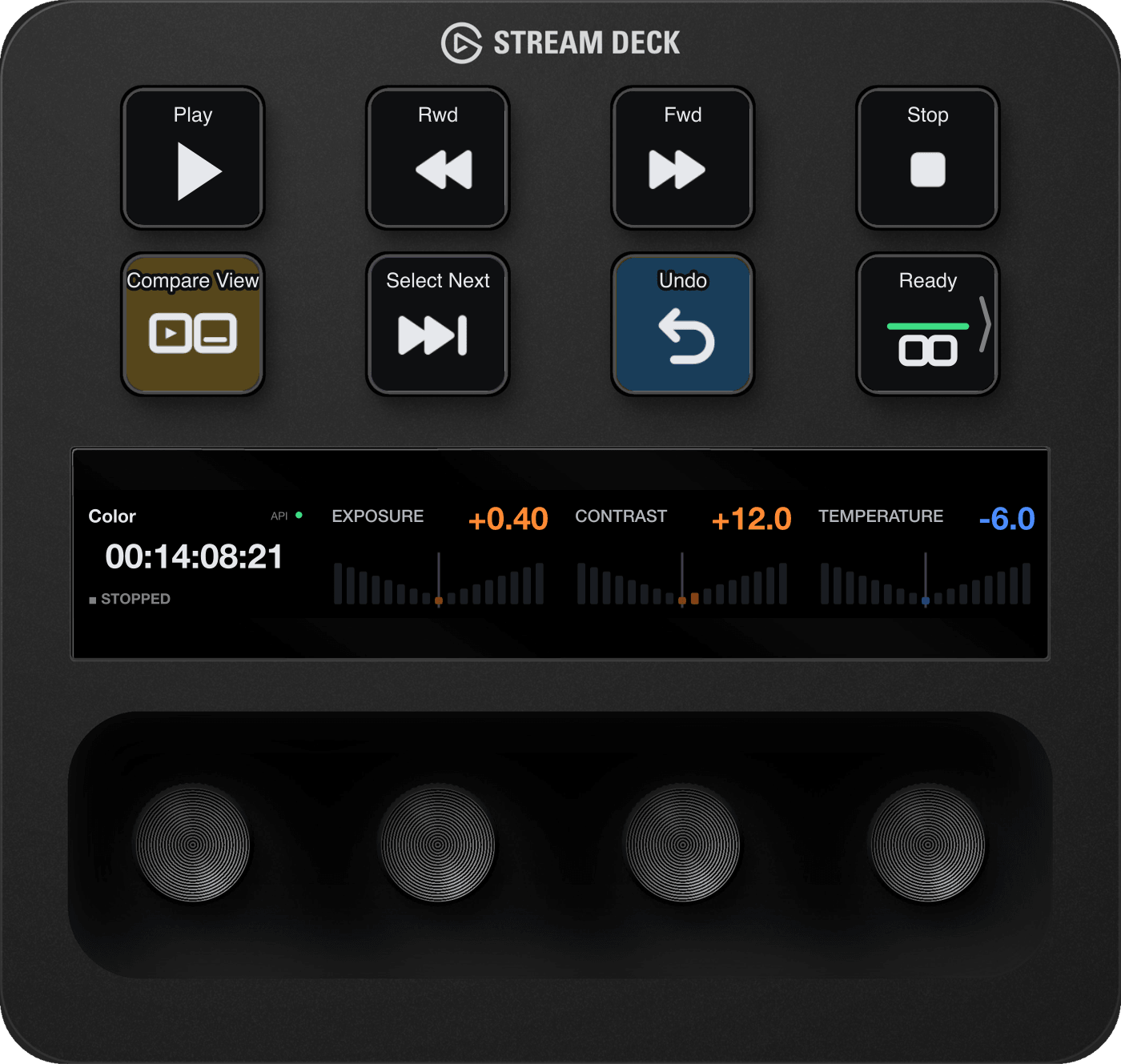
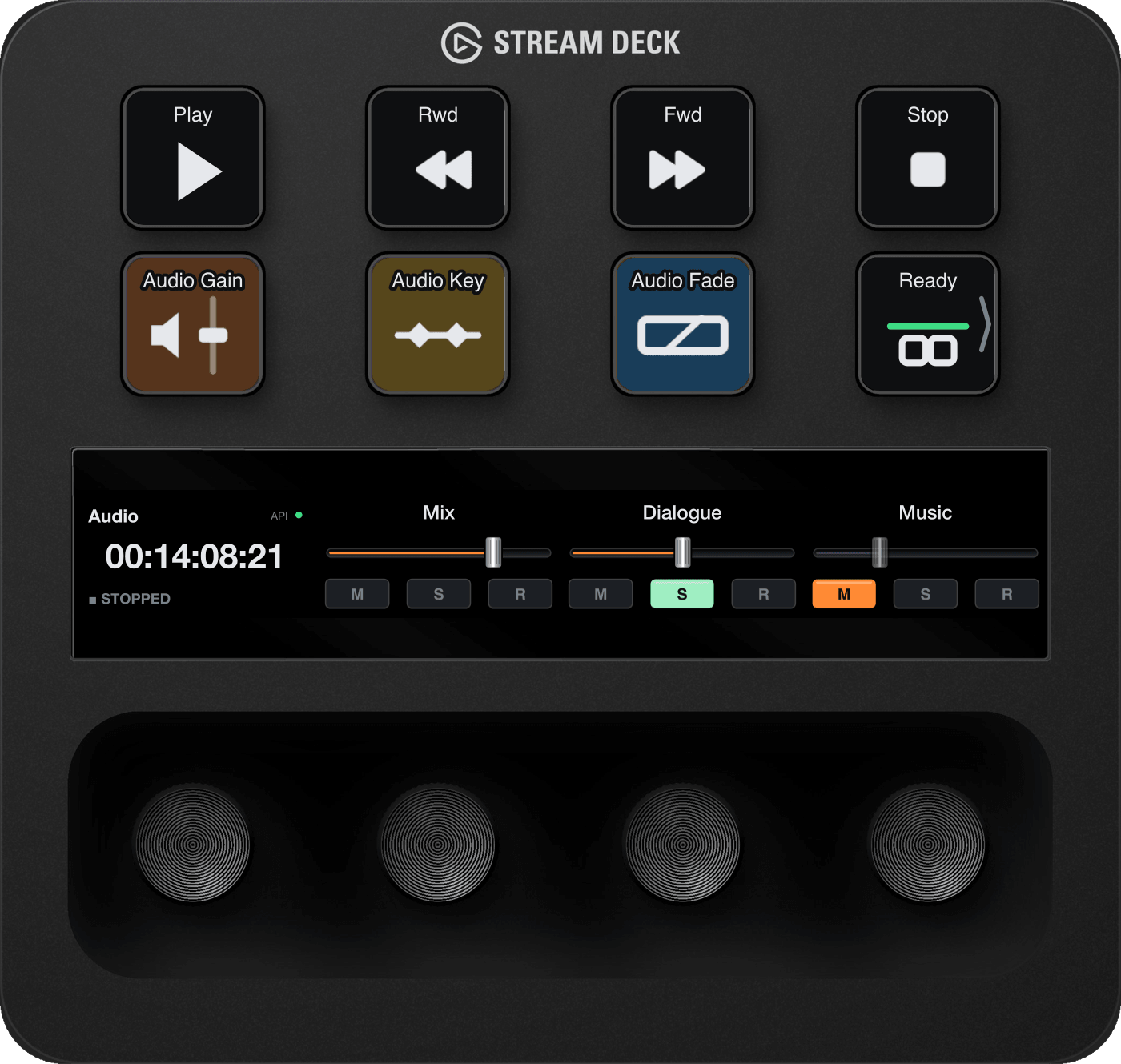
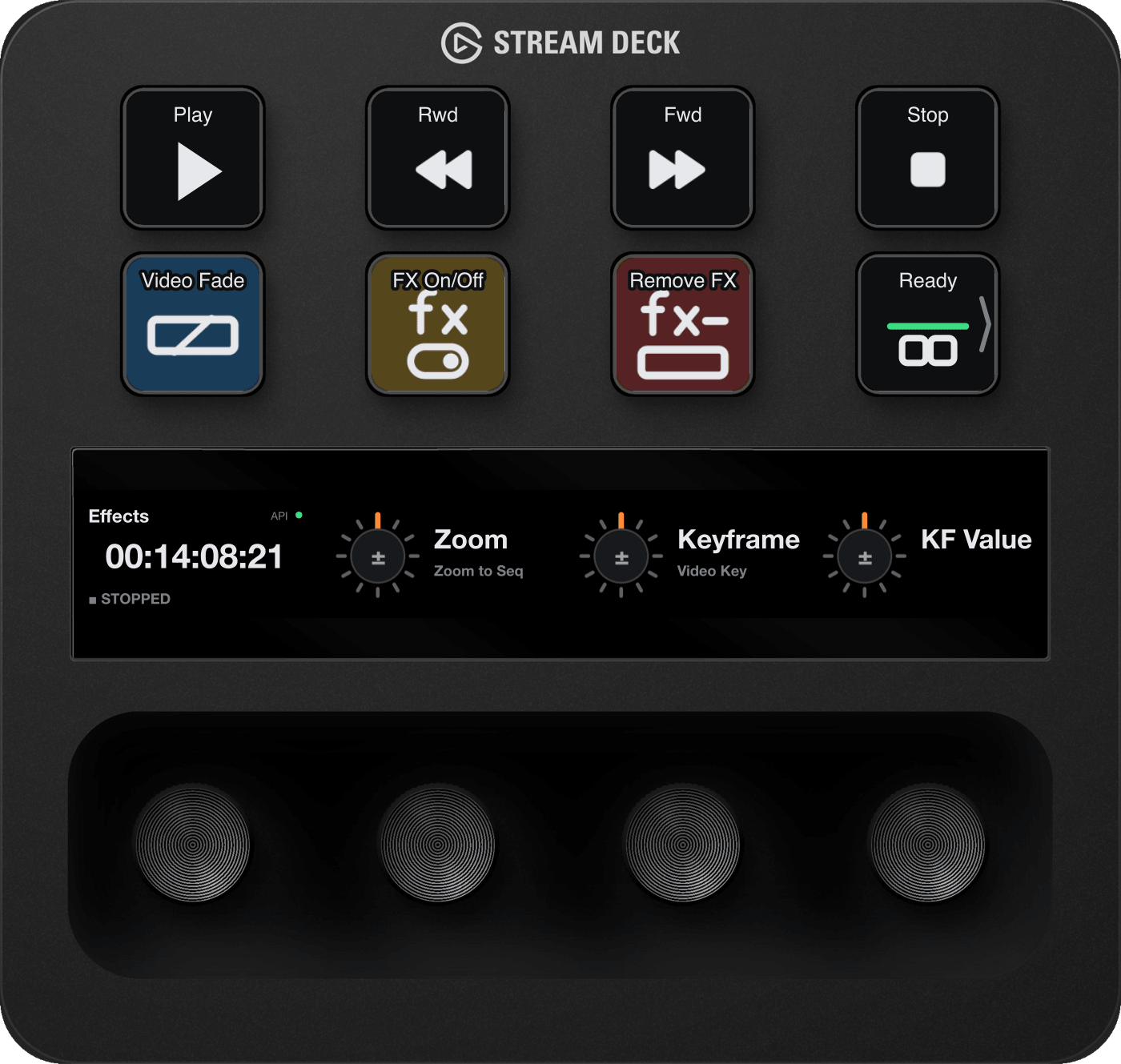
Default Editing profile on a Stream Deck +
Workspace following
The deck follows your workspace.
With a project open, switch Premiere to Editing, Color, Audio or Effects and every connected Stream Deck switches to the matching layout. Map up to four of your own workspaces to custom profiles; any other workspace shows Editing. Press the Timecode key, or press and turn the Timecode dial, to step through them from the deck.
Leave Premiere and the deck goes back to the profile you had before, so Stream Deck's own Smart Profiles keep working - or tick one box to keep DeckBridge on the deck while you work elsewhere.
- 1Premiere in front, Color workspaceThe deck shows DeckBridge Premiere Plus Color.
- 2You switch to another appThe deck goes back to your previous profile; Smart Profiles work again.
- 3Back to PremiereThe Color profile returns. Premiere's own dialogs and the Stream Deck app don't count as leaving.
Ready on install
Four layouts. One frame.
Bundled profiles for the Stream Deck +, MK.2, XL, Mini, Neo, Studio, + XL and Galleon 100 SD. On the Stream Deck +, every layout shares Play, Rewind, Fast Forward and Stop across the top, the Timecode dial on the left and the Status key bottom-right. The rest fits the workspace - and every key and dial can be changed in the Stream Deck app.
Editing
- Add Edit
- Insert
- Ripple Delete
Zoom, Trim and Clip Vol command dials
Color
- Comparison View
- Select Next Clip
- Undo
Lumetri Exposure, Contrast and Temperature
Audio
- Audio Gain
- Add or Remove Audio Keyframe
- Apply Audio Transition
Mixer strips: Mix, track 1, track 2
Effects
- Apply Video Transition
- Effects Enabled
- Remove Attributes
Zoom, Keyframe and KF Value command dials
On the touch strip
Real values, not labels.
Timecode
Premiere's live timecode in large digits, with the current workspace underneath. Turn to jog, press to play or stop.
Mixer
The track's real name, a fader drawn like Premiere's own (+15 dB down to −∞), and M / S / R that light when mute, solo or record-arm are on. Changes made in Premiere show on the deck.
Lumetri
One Lumetri Color setting per dial, showing its real value. Turn to change it, press and turn for fine steps, press to reset.
Commands
No shortcut needed.
Premiere has about 1,300 commands, and every one has its own icon and short title for the deck. With DeckBridge's own Premiere plug-in installed, most run directly - no keyboard shortcut needed.
The few that only work by shortcut use yours, and a key that can't fire right now is dimmed instead of pretending.

Get it
Live on macOS
and Windows.
The setup guide covers installing DeckBridge for Premiere Pro and every state the Status key can show.
