DeckBridge for Premiere Pro · Manual
User manual
Everything DeckBridge for Premiere Pro does, action by action. To install it, follow the setup guide.
1. Welcome
DeckBridge for Premiere Pro is a Stream Deck plugin, not a profile pack. A profile pack is a set of fixed hotkeys. DeckBridge holds a live connection to Premiere through DeckBridge's own Premiere plug-in.
- Your Stream Deck switches with Premiere's workspaces.
- The deck shows Premiere's real timecode, play state, Lumetri values and mixer faders.
- Command keys run Premiere's commands directly, most of them without a keyboard shortcut. The rest fire your shortcut from Premiere's active keyboard layout.
- A key that can't act right now is dimmed, and a press shows Stream Deck's alert instead of doing something else.
DeckBridge has no telemetry. It only opens a web page when you press a guide or support button, or tap a Status key step. Nothing leaves your computer unless you copy and paste it yourself (Copy diagnostics).
2. Requirements
| Stream Deck app | Version 7.1 or newer. Older versions refuse to install the plugin. |
|---|---|
| Stream Deck | Bundled profiles for the Stream Deck +, MK.2, XL, Mini, Neo, Studio, + XL and Galleon 100 SD. Every action works on keys except Command Dial, which needs a dial. |
| Operating system | macOS 14 Sonoma or newer (Premiere Pro 2026's own minimum), or Windows 11. |
| Premiere Pro | Tested with Premiere Pro 2026 (26.5.2) on Apple Silicon Macs and Windows 11, and on an Intel Mac with a 1.0 pre-release build. |
| Language | Premiere Pro in English. Workspace following, custom workspaces and workspace keys read Premiere's English menus. Other languages aren't supported yet. |
| Permissions | Administrator rights to install DeckBridge's own Premiere plug-in, and again for Update Helper and Remove DeckBridge data. On macOS, the Accessibility permission for the Stream Deck app. |
Older Premiere versions aren't tested yet.
3. Installation and first run
- Get DeckBridge for Premiere Pro from the Elgato Marketplace. The Marketplace installs it into the Stream Deck app, on macOS and Windows. There is no separate installer.
- In the Stream Deck app, choose your deck's DeckBridge Premiere … Editing profile once, then close the app's window.
- Follow the Status key (bottom right on every bundled profile) until it says Ready.
The Status key names the next step. Its i opens that step in the setup guide. Steps you do yourself (relaunch Premiere, open a project, add the device) are dimmed and carry the i. Install Helper and Update Helper do the job when you tap them.
The setup guide covers installing DeckBridge's own Premiere plug-in, restarting Premiere, and adding the DeckBridge control surface in Premiere once.
4. What's new in 1.0.0.15
Changes since 1.0.0.0 that you can see on the deck or in the settings.
Dials (Stream Deck +, + XL, Studio, Galleon 100 SD)
- Command Dial: a ring gauge with the dial's name in large type and its press command underneath. The press label shows the command's bare name. While you hold the dial, it reads HOLD.
- Mixer dial: a desk-style fader with M, S and R buttons that light when mute, solo or record-arm is on.
- Lumetri dial: two-colour bars that grow from the middle toward the value's side, with the value in that side's colour. Three-digit values drop the decimal so they fit beside the title.
- Timecode dial: a larger readout, with ▶ PLAYING or ■ STOPPED that follows Premiere's play state.
- A dial press held for a second or longer fires nothing. On the Galleon 100 SD, holding a dial to switch screen layer no longer triggers its press action.
Keys
- Key pairs (Lumetri and mixer) use the same look as the dials: the desk fader with its cap clear of the scale numbers, lit M / S / R, and the Lumetri bars split around the gap between the two keys.
- A key pair with nothing live shows its name (Mix, A1, …, or the Lumetri setting) over an empty track, with − and + on both keys.
- The Timecode key shows ▶ PLAYING / ■ STOPPED like the dial.
- Dimmed keys are brighter, so you can still read them. The amber Status key is brighter too.
- Status key: steps you do yourself (Relaunch Premiere, Open a Project, Add Device) are dimmed and show a large i, so they don't look like a button. Grant Access stays red.
- Custom shortcut keys (a Command key with a custom shortcut and no command): if nothing in Premiere's keyboard layout uses the shortcut, the key is dimmed and a press shows the alert instead of sending it. Bind the shortcut in Premiere and the key lights within about five seconds.
- A title typed in Stream Deck's own Title box on a Command key replaces DeckBridge's label and the shortcut text under it. Clear the Title box and DeckBridge's label comes back. Use Key label if you want the text to dim with the key.
Settings panels
- Icon: pick an icon from a grid of images. The picked icon shows on the key at once, also on a custom-shortcut key and before its shortcut is set.
- Settings panels open faster, also the first time after a plugin update.
- Saving one field can no longer erase another field's setting.
- Get Support now opens the support page with Premiere chosen.
Bundled layouts
- Galleon 100 SD: both dial layers are filled in every workspace. If you already have Galleon profiles, delete them and switch Premiere to another workspace and back to get this (see Profiles).
- XL: the Lumetri and fader key pairs are grouped in one 2 × 2 block.
5. Workspace following
- With a project open, switching Premiere's workspace to Editing, Color, Audio or Effects switches every connected deck to its model's matching DeckBridge Premiere profile. A deck plugged in later follows too.
- Custom workspaces. Up to four of your own workspaces can have their own profile (Custom 1 to Custom 4, see the Status key's settings). Matching ignores capitals and spaces at the start or end of the name.
- Any other workspace shows the Editing profile. The standard four names must match exactly (English Premiere). A saved copy such as "Color – mine" counts as another workspace.
- Premiere in front with no project open (the Home screen): the deck goes to the Editing profile, whose Status key says what's missing. Closing a project leaves the deck where it is.
- Hand-back. Switch to another app, or quit Premiere, and the deck goes back to the profile it had before, within about 3 seconds. Stream Deck's own Smart Profiles work again. When Premiere comes back to the front, the profile for the current workspace returns.
- The Stream Deck app itself in front (while you edit a profile), and Premiere's own dialogs, don't count as leaving Premiere.
- Keep Premiere profile when Premiere isn't focused (Status key settings, under Leaving Premiere): off by default. When on, the deck stays on DeckBridge until you quit Premiere or change profile yourself. Quitting Premiere always hands back.
- From the deck: press the Timecode key, or press and turn the Timecode dial, to step through Editing, Color, Audio and Effects, then your mapped custom workspaces. A workspace key (Command) switches straight to one.
- You don't need to link a DeckBridge profile to Premiere as a Smart Profile. The plugin switches on its own. Remove such a link if you made one: the two can fight over the deck.
- Needs Premiere in English (Requirements).
6. The bundled layouts
Each profile has one page. You can add pages and hold the Status key to page through them. Every key and dial can be changed in the Stream Deck app like any other action.
6.1 Stream Deck +
Every Stream Deck + profile shares the same frame: Play, Rwd, Fwd and Stop across the top, the Timecode dial on the left and the Status key bottom right. Key titles are as they appear on the key.
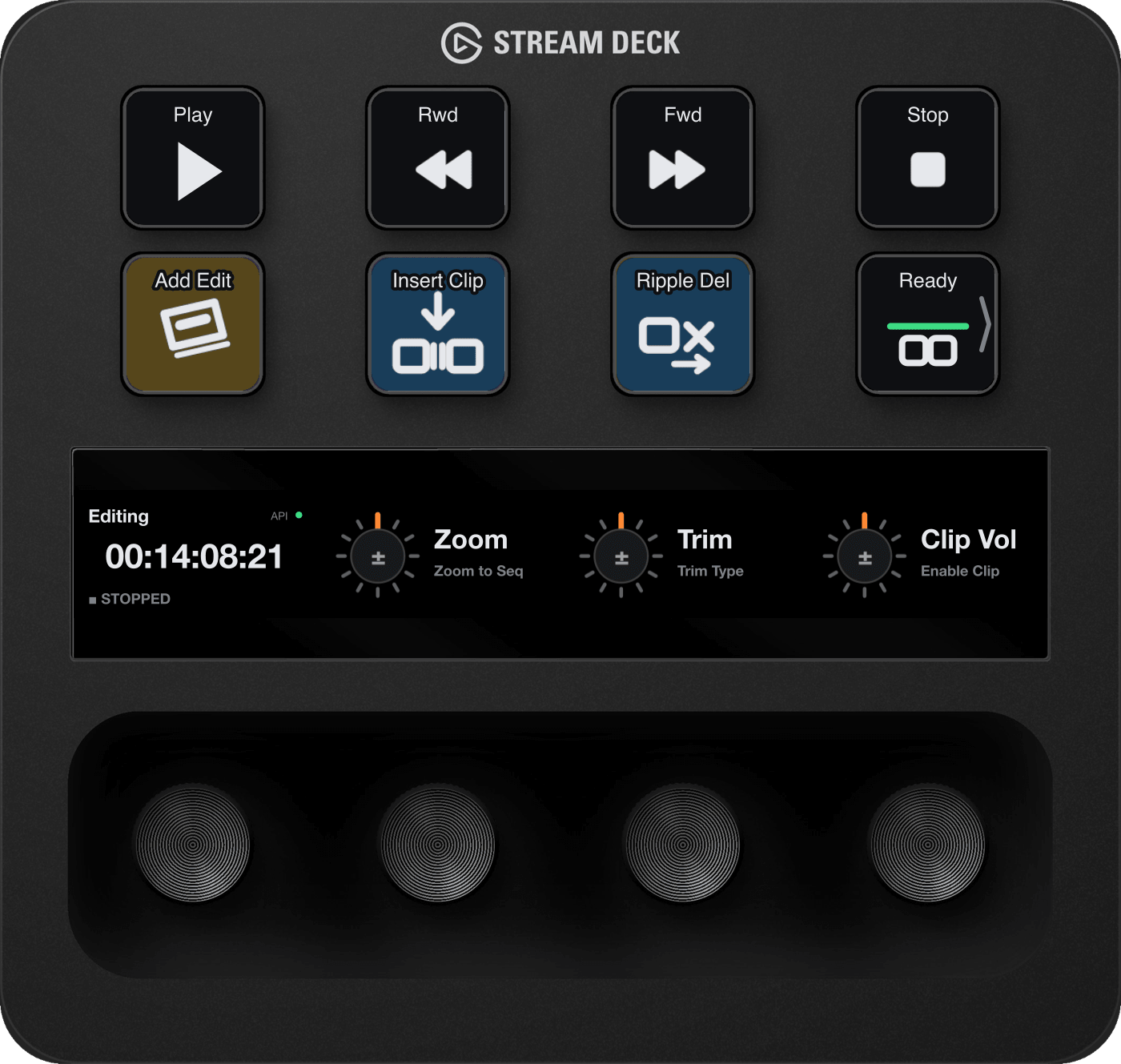
Editing
| Key 1 "Add Edit" | Add Edit (cut at the playhead) |
|---|---|
| Key 2 "Insert Clip" | Insert |
| Key 3 "Ripple Del" | Ripple Delete |
| Dial 2 "Zoom" | turn: Zoom Out / Zoom In · press: Zoom to Sequence |
| Dial 3 "Trim" | turn: trim backward / forward · press: Toggle Trim Type · hold and turn: trim backward / forward many |
| Dial 4 "Clip Vol" | turn: decrease / increase clip volume · press: Enable (clip on/off) · hold and turn: decrease / increase many |
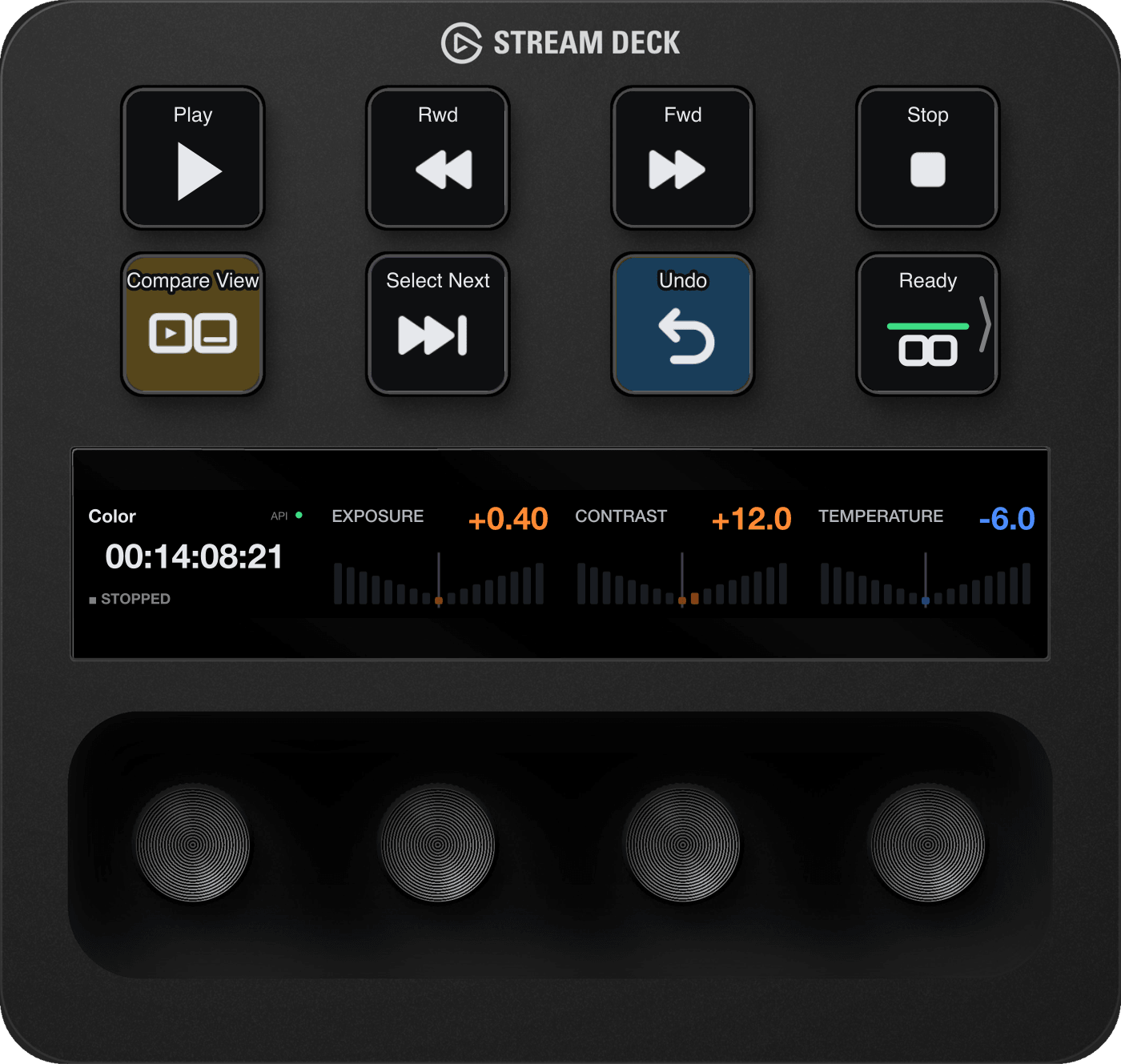
Color
| Key 1 "Compare View" | Comparison View |
|---|---|
| Key 2 "Select Next" | Select Next Clip |
| Key 3 "Undo" | Undo |
| Dial 2 "Exposure" | Lumetri Exposure |
| Dial 3 "Contrast" | Lumetri Contrast |
| Dial 4 "Temperature" | Lumetri Temperature |
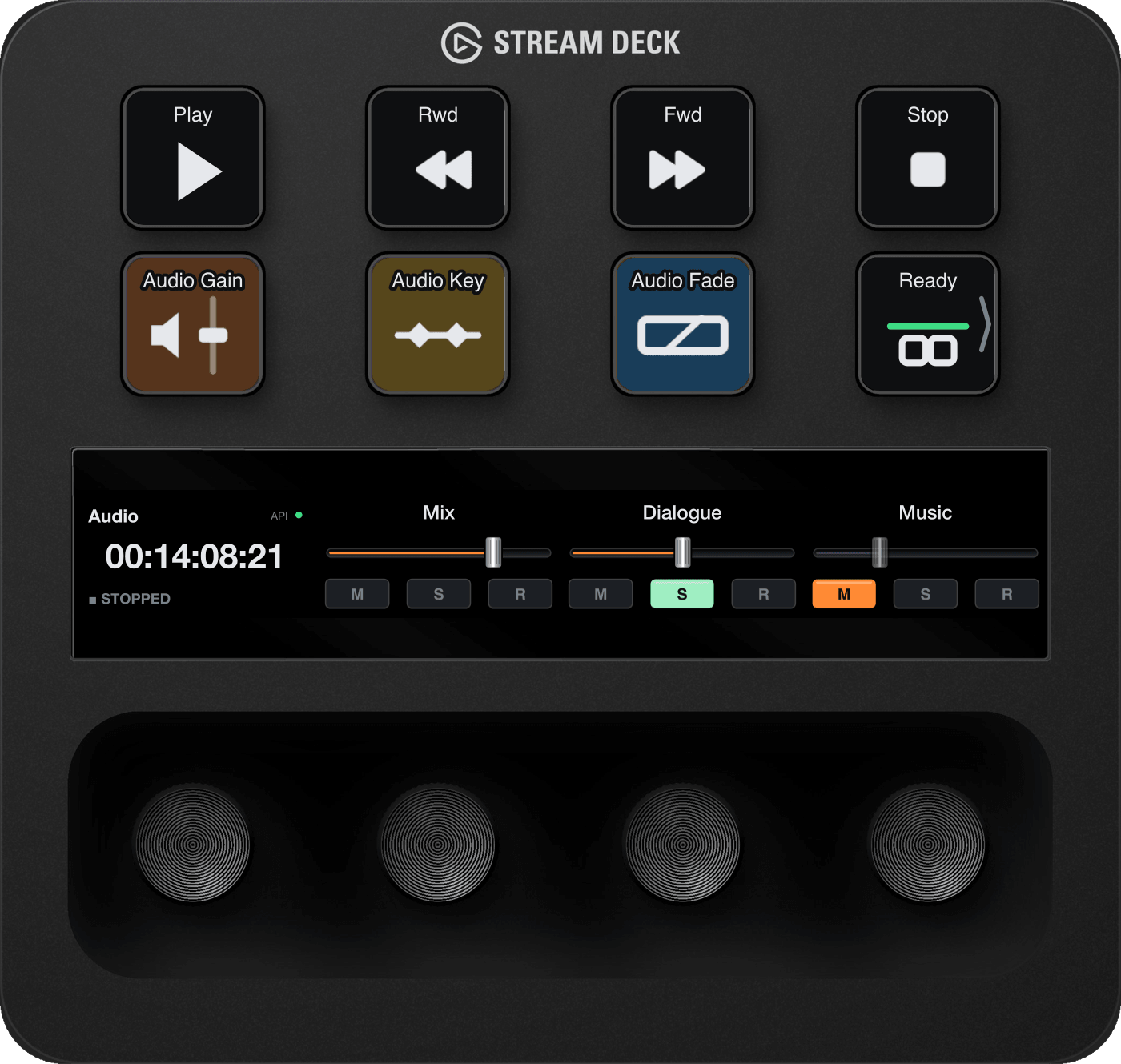
Audio
| Key 1 "Audio Gain" | Audio Gain |
|---|---|
| Key 2 "Audio Key" | Add or Remove Audio Keyframe |
| Key 3 "Audio Fade" | Apply Audio Transition (the default) |
| Dial 2 "Mix" | Mixer: the master |
| Dial 3 "Track 1" | Mixer: track 1 |
| Dial 4 "Track 2" | Mixer: track 2 |
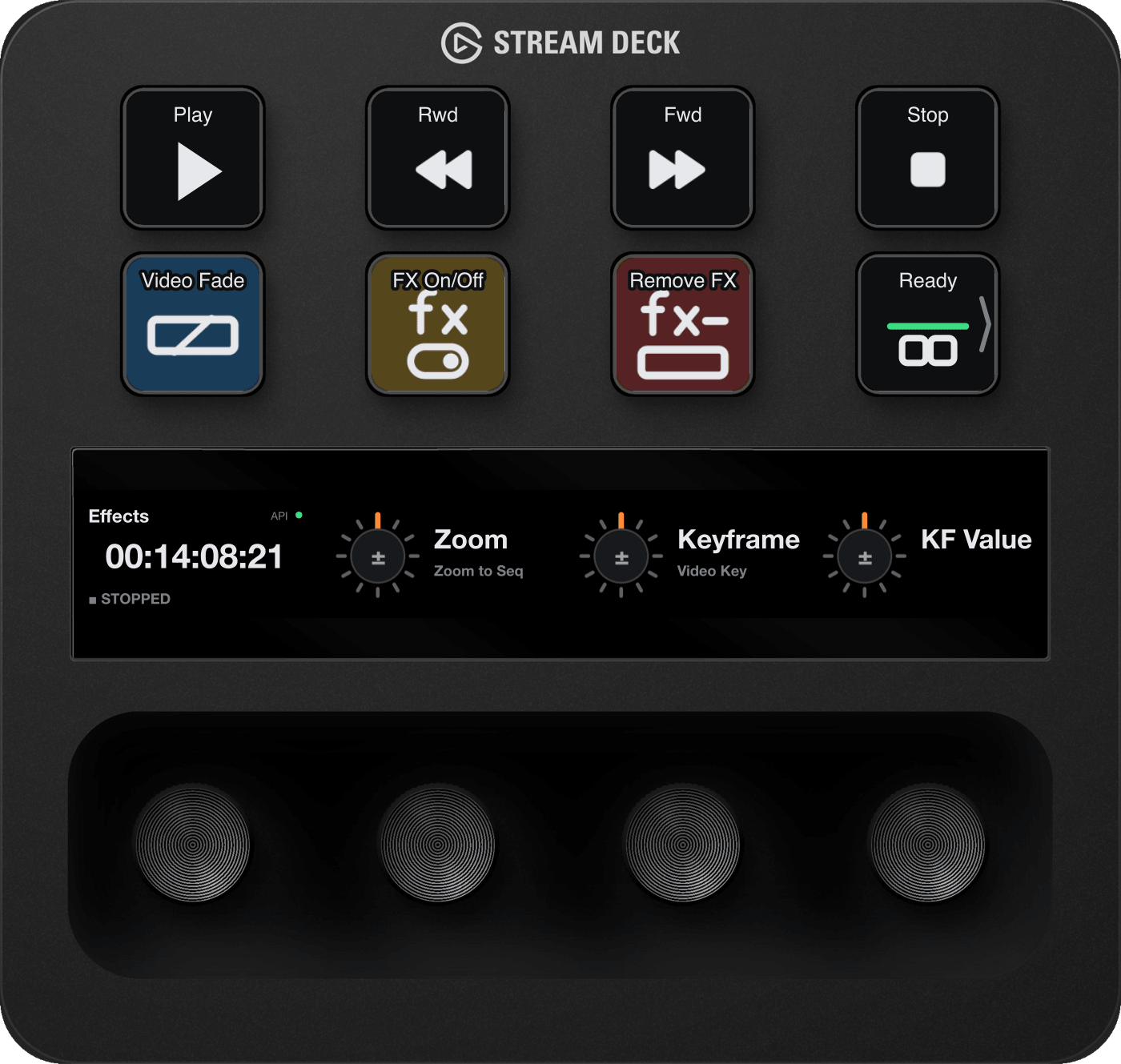
Effects
| Key 1 "Video Fade" | Apply Video Transition (the default) |
|---|---|
| Key 2 "FX On/Off" | Effects Enabled |
| Key 3 "Remove FX" | Remove Attributes |
| Dial 2 "Zoom" | as on Editing |
| Dial 3 "Keyframe" | turn: previous / next keyframe · press: Add or Remove Video Keyframe · hold and turn: move the keyframe one frame earlier / later |
| Dial 4 "KF Value" | turn: decrease / increase keyframe value |
6.2 Stream Deck MK.2
Every MK.2 profile has Play, Rwd, Fwd and Stop along the top, the two Jog keys (back, forward) at the left of the middle row, the Timecode key bottom left and the Status key bottom right. The rest:
| Editing | Add Marker (top right); In, Out, Add Edit (middle row); Ripple Del, Trim Prev, Trim Next (bottom row) |
|---|---|
| Color | Undo (top right); a Lumetri Exposure key pair and Compare View (middle row); a Lumetri Temperature key pair and Scopes (bottom row) |
| Audio | Sound Panel (top right); a Mix fader key pair and Audio Gain (middle row); Audio Key, Audio Fade, Mutes (bottom row) |
| Effects | Speed (top right); Prev Key, Next Key, Video Key (middle row); Video Fade, Attributes, Remove FX (bottom row) |
6.3 Other decks
The other profiles are built the same way:
- transport keys, the Jog key pair (not on the Neo), a Timecode key bottom left and the Status key bottom right;
- decks with dials get the Timecode dial first, then the workspace's dials as on the Stream Deck +;
- on Color and Audio, Lumetri and fader key pairs sit together in one block, skipping any setting a dial already has;
- the workspace's commands fill the free keys, most useful first.
| Deck | Dials after Timecode | Color key pairs | Audio key pairs |
|---|---|---|---|
| XL | none | Exposure, Temperature, Contrast, Tint | Mix, tracks 1, 2, 3 |
| Mini | none | none (one workspace command key) | none (one workspace command key) |
| Neo | none | Exposure | Mix |
| Studio | 1: Editing Zoom · Color Exposure · Audio Mix · Effects Zoom | Temperature, Contrast, Tint, Saturation | tracks 1, 2, 3 |
| + XL | 5: Editing Zoom, Trim, Clip Vol, Edits, Nudge · Color Exposure, Contrast, Temperature, Tint, Saturation · Audio Mix, tracks 1 to 4 · Effects Zoom, Keyframe, KF Value, Clip, Edits | Highlights, Shadows, Whites, Blacks | none (the dials cover them) |
| Galleon 100 SD | 3, over two screen layers, as on the Stream Deck + | Tint | track 3 |
- Edits dial: turn for previous / next edit; press for Add Edit.
- Nudge dial: turn to nudge the clip one frame left / right; hold and turn to nudge several frames.
- Clip dial: turn to select the previous / next clip; press to select the clip at the playhead.
- Galleon 100 SD: hold a dial for about 3 seconds to switch to its second screen layer.
These layouts are new: tell us how they work for you.
7. The actions
Every action's settings end with Open Setup Guide (opens the setup guide) and Get Support (opens the support page).
7.1 Transport key
- Command: Automatic (Play / Stop) by default. The picker's first group, Transport, has Play / Stop, Stop, Fast Forward and Rewind. Below it you can pick any Premiere command, and the key then works like a Command key. Browse works as on the Command key.
- On the key: Play (Pause while playing), Stop, Fwd, Rwd, lit with Premiere's real playback state. Rewind and Fast Forward work like J and L: each press goes faster.
- Key override (optional): click the box and press the keys. A recorded key replaces the command: pressing this key sends those keys instead, without checking Premiere's shortcuts. Clear removes it.
- Label replaces the text on the key. Icon is Automatic, or any bundled icon from the grid.
- The built-in transport commands need DeckBridge's Premiere plug-in connected (project open, device added). Until then the key is dimmed and a press shows the alert.
- Pressing one while another app is in front brings Premiere forward first.
7.2 Command key
One key, one Premiere command. DeckBridge knows about 1,300 Premiere commands, each with its own icon and short title.
- Command: type to search by name ("panel" also finds the Open Panel commands), or scroll the groups: the Application · … groups, then Premiere's panels, then Workspaces. Enter picks the first match. Clear empties the key.
- Browse - Include commands without a shortcut: off by default, so the list shows only commands that can run, directly or by your shortcut. Tick it to list the rest too, marked "no shortcut".
- The command list comes from DeckBridge's Premiere plug-in, so the picker needs Premiere connected.
- Key label (optional) replaces the text on the key. A title typed in Stream Deck's own Title box (with Show Title on) replaces DeckBridge's label too, and the shortcut text under it. Stream Deck draws that title, so it doesn't dim when the key can't act, and a workspace key loses its ●. Prefer Key label. Clear the Title box and DeckBridge's label comes back. The Title box only does this on Command keys.
- Shortcut says what the key fires:
- "Runs directly in Premiere - no shortcut needed"
- "Fires ⌘K - your Premiere keyboard shortcut" (Ctrl+K style on Windows)
- "Fires ⇧⌘K - custom shortcut on this key"
- "No shortcut in Premiere's keyboard shortcuts - add one there, or record a custom shortcut below"
- Custom shortcut: click the box and press the keys. Clear removes it. It's sent when no command is picked, or when the picked command has no shortcut in Premiere's keymap. A key with only a custom shortcut shows that shortcut on the key. If nothing in Premiere's keyboard shortcuts uses it, that key is dimmed and a press shows the alert instead of sending it. Bind it in Premiere and the key lights within about five seconds. (With a command picked, the custom shortcut is sent without that check.) For a shortcut meant for another app, use Stream Deck's own Hotkey action.
- Icon: Automatic (from command), or search and pick any bundled icon from the grid. The picked icon shows on the key at once, on a custom-shortcut key too (dimmed until the shortcut does something).
- Advanced: type a command ID directly.
- Notes under some commands: "click inside the … panel first" means the command only acts in that panel, so click into it in Premiere once. "focuses the timeline first" means DeckBridge does that for you.
- Workspace keys: pick an entry from the Workspaces group. The key switches Premiere to that workspace. The current workspace's key shows a ● before its name.
- Left out of the picker on purpose: Quit, Close / Close All, Revert, and destructive deletes such as Remove Unused and deleting previews.
- Same name in several panels: Premiere's Keyboard Shortcuts can list a command more than once (for example Ripple Delete under Edit and under Timeline). If a key stays dimmed after you bound one, bind the other.
7.3 Command Dial dial
- Up to five commands, each picked with the same picker: Rotate right (+), Rotate left (−), Hold + right, Hold + left and Press.
- Turn fires the + or − command.
- Hold the dial and turn to fire its Hold + right / Hold + left commands. While you hold it, the strip reads HOLD (only when a hold command is set). An empty hold command falls back to the plain turn.
- Press and release without turning fires the Press command. A press held for a second or longer fires nothing.
- Label (optional) titles the dial.
- Shortcuts says what fires each side, or which command still needs a shortcut in Premiere.
- The strip shows a ring gauge that turns as you turn, the dial's name and the Press command's name. A press with no Press command does nothing. A turn with nothing assigned shows the alert.
- Advanced has a command ID field for each.
- Dimmed while Premiere can't act (Premiere closed or no project open).
7.4 Timecode dial key
- Premiere's live timecode in large digits, with the current workspace above it and ▶ PLAYING or ■ STOPPED below. It keeps updating with Premiere in the background.
- On a dial, an API dot in the corner is green while DeckBridge's Premiere plug-in is reporting and red when it isn't.
- When Premiere is closed or not connected, the dial shows grey dashes (
--:--:--:--). The key keeps its last values, greyed. - On a dial: turn to jog the playhead; press (without turning) to play or stop; press and turn to change workspace. A press held for a second or longer fires nothing.
- On a key: tap for the next workspace (the standard four, then your custom ones); hold (about a third of a second) for the previous Stream Deck page of keys.
- Jog sensitivity (dial): slow (0.25) to fast (2), default 1.
7.5 Jog key
- Direction: Forward ▶ or ◀ Back. Bundled profiles put a pair side by side.
- Tap to move one frame. Hold to repeat, speeding up as you hold.
- Works without DeckBridge's Premiere plug-in too (it then sends the arrow keys).
- Dimmed while Premiere isn't running. A press then shows the alert.
7.6 Mixer dial key
- One mixer strip: the track's real name, a fader drawn like Premiere's own (+15 dB down to −∞) with its scale, and M / S / R buttons that light when mute, solo or record-arm are on. Changes made in Premiere show on the deck.
- On a dial: turn to move the fader; spin faster to travel further. Press to mute or unmute (a press held for a second or longer does nothing). Tap the touch strip's bottom row: left third mute, middle solo, right record-arm. Taps higher up do nothing.
- On keys: see Fader pair.
- Fader strip: Auto (dial order; keys: Mix), Mix (master), or a track by number (with its name when Premiere is connected). With Auto, the leftmost mixer dial is track 1, the next track 2, and so on. Keys default to Mix.
- Fader step (% per detent): 0.5 (fine) to 10 (coarse), default 1.
- Until Premiere is connected, or when the sequence has no such track, the key shows its strip's name (Mix, A1, A2 …) dimmed over an empty fader. A dial is blank and dimmed.
7.7 Lumetri dial key
- One Lumetri Color setting, with its real value and its scale on the strip. Bars grow from the middle toward the value's side, in that side's colour.
- On a dial: turn to change it; press and turn for steps ten times finer; press (without turning) to reset it.
- On keys: see Lumetri pair.
- Parameter, in six groups:
- Basic: Temperature, Tint, Exposure, Contrast, Highlights, Shadows, Whites, Blacks, HDR Specular, Saturation
- Creative: Intensity, Faded Film, Sharpen, Vibrance, Saturation, Shadow Tint and Highlight Tint (colour X / Y), Tint Balance
- Wheels: Shadows, Midtones, Highlights, HDR Specular (colour X, colour Y, luma)
- HSL Secondary: the key (hue, saturation, luma middle / range / falloff, Denoise, Blur), the wheels, Temperature, Tint, Contrast, Sharpen, Saturation
- Vignette: Amount, Midpoint, Roundness, Feather
- Other: HDR White, HDR Range
- The strip says Select a clip when no clip's Lumetri is showing, and Helper needed when Premiere isn't connected.
7.8 Status key
The deck's setup and status key, bottom right on every bundled profile.
- Shows the one thing to fix next, or Ready. The steps, in order:
| Grant Access (red, macOS) | Opens the setup guide step. |
|---|---|
| Open Premiere (dimmed) | Opens the setup guide step. |
| Install Helper / Update Helper (bright amber) | Installs DeckBridge's Premiere plug-in (password or permission prompt). |
| Relaunch Premiere (dimmed amber, i) | Opens the setup guide step. |
| Open a Project (dimmed amber, i) | Opens the setup guide step. |
| Add Device (dimmed amber, i) | Opens the setup guide step. |
| Ready (green) | Opens the setup guide. |
- On a deck without a Timecode dial, a green key shows the workspace name instead of Ready (cut short with "…" after 10 characters).
- Hold it (about a third of a second) for the next page of keys in this profile. It wraps after the last page. With only one page, holding shows the alert. Paging works on the plugin-installed DeckBridge profiles, not on copies you imported by double-clicking.
- Its settings panel holds the plugin-wide options (next section).
7.9 The Status key's settings
Click the Status key in the Stream Deck app.
| Status | The current problem, or "All good - the deck is fully connected." |
|---|---|
| Premiere plug-in | The three steps: install the plug-in; quit and reopen Premiere Pro; open a project (first time only: add the DeckBridge device in Premiere's Control Surface settings). Finished steps are struck through and the current one is bold. Install plug-in (or Update plug-in) shows while the first step is current. |
| Diagnostics | Copy diagnostics copies a support report (section 12.3). |
| Help | Open Setup Guide opens the setup guide. |
| Support | Get Support opens the support page with Premiere chosen. |
| Leaving Premiere | Keep Premiere profile when Premiere isn't focused (section 5). |
| Custom workspaces | Custom 1 to Custom 4: type a workspace's name as it appears in Premiere's WindowWorkspaces menu, then press Save (or Enter). The panel says Saved ✓ ("Not saved yet" until then). While that workspace is open, the deck shows the matching DeckBridge Premiere … Custom profile, which starts empty apart from the Status and Timecode controls. A standard name typed in a slot is ignored. You can rename the Custom profiles in the Stream Deck app. |
| Uninstall | Remove DeckBridge data… (section 13). |
The Status key's settings are on every Status key. If your profile has none, drag a Status action from the DeckBridge for Premiere list onto a free key.
8. Key pairs
Two keys side by side can act as one control: a Lumetri pair or a fader pair. Bundled profiles place them for you (MK.2, XL, Neo, Studio, + XL, Galleon 100 SD).
How keys pair
- Two keys of the same action (two Lumetri keys, or two Mixer keys) pair when they sit next to each other in the same row of the same deck. The left one is the left half.
- The pair draws one picture across both keys, with the gap between the keys under the bezel.
- The left key's setting decides what the pair controls (Parameter, or Fader strip). The right key's setting is not used.
- A key with no neighbour of its own kind is a lone key.
| Left key | Right key | Both together | Lone key | |
|---|---|---|---|---|
| Lumetri pair | Lowers the value | Raises the value | Resets it | Shows the value only |
| Fader pair | Lowers the fader | Raises the fader | Mute / unmute | Shows the level; a tap mutes |
- Tap for one step. Hold to repeat, getting faster.
- A fader pair shows M / S / R lit from Premiere's mixer, and the fader's scale. A Lumetri pair shows the value in the colour of its side, with the bars split around the gap.
- With nothing live (Premiere not connected, no such track), the pair shows its name over an empty track, with − and + on the keys.
- Fader step (Mixer) sets how far one step moves.
9. Shortcuts and the dimmed look
- With DeckBridge's Premiere plug-in connected, most commands run directly, with no keyboard shortcut needed. A few only work by shortcut. Those keys use your Premiere shortcut from your active keyboard layout.
- A dimmed key can't fire right now:
- its command has no shortcut and can't run directly, or
- Premiere isn't running, no project is open or, on macOS, Accessibility is missing.
- A key with only a custom shortcut, which nothing in Premiere's keyboard layout uses, dims the same way.
- After you close a project, keys dim within about 2 seconds. Quitting or leaving Premiere is noticed within about 3 seconds.
- A title typed in Stream Deck's Title box doesn't dim. Use DeckBridge's Key label instead.
- Editing a shortcut is picked up within about five seconds. Switching to a different shortcut layout is picked up after you quit Premiere.
10. Profiles
- Each deck model has eight bundled profiles: DeckBridge Premiere <deck> Editing, Color, Audio, Effects and Custom 1 to Custom 4. Each is added the first time the plugin switches your deck to it. The Stream Deck app may ask with an Install Profile(s) prompt.
- Don't double-click the profile files to import them. That makes a separate copy the plugin can't switch to or page through.
- Customise them like any Stream Deck profile. Add pages and hold the Status key to page through them. Renaming a profile is fine.
- Upgrading never replaces your profiles, so your changes are kept. A profile new in that version is added the first time the deck switches to it.
- To get a new version's default layout, delete that DeckBridge Premiere profile in the Stream Deck app, then switch Premiere to another workspace and back: the fresh copy is added (approve the prompt). If it doesn't come back, install the plugin again. It's your call, since deleting a profile throws away your changes. More in the setup guide.
11. Limitations
- Panel-only commands. Some commands only act in one Premiere panel. The picker marks them. Click into that panel once, then use the key.
- Commands Premiere keeps for the keyboard can't be sent by DeckBridge: for example Import Mode, Edit Mode, Export Mode, Color Mode, the Project panel's Add to Favorites, Tab Stops. Give one a shortcut in Premiere, then set it as a Command key's Custom shortcut, or use Stream Deck's own Hotkey action.
- Some unnamed commands do nothing. A few entries Premiere lists without a proper name (the picker builds one from the command ID) may do nothing from a key, for example Add Track. Use Add Tracks… instead.
- Premiere needs to be in front. Keys and dials bring Premiere forward first if another app is active, so expect a short delay on that first press.
- Mixer: only the strips you place on the deck. No banking past them, and no level meters.
- Workspace following, custom workspaces and workspace keys need Premiere in English (Requirements).
- Lumetri panel buttons such as Auto Tone, Reset Tone and Save Preset are dimmed and can't be run from the deck.
- Dial hints: the Stream Deck app shows no turn or press hints for DeckBridge's dials.
- Windows: with some keyboard and mouse sharing tools in front (for example Deskflow), the deck may stay on Premiere's profile instead of handing back.
- Dial Stacks: inside a Stream Deck Dial Stack, the press belongs to Stream Deck, so a DeckBridge dial's press action doesn't fire there.
12. Troubleshooting
12.1 The Status key, state by state
| Tile | Meaning | Fix |
|---|---|---|
| Grant Access (red, macOS) | The Stream Deck app lacks Accessibility, so command keys can't type into Premiere. | Setup guide: Grant Access |
| Open Premiere (dimmed, zz) | Premiere Pro isn't running. | Launch Premiere; the deck lights up on its own. |
| Install Helper (bright amber) | DeckBridge's Premiere plug-in isn't installed. | Tap the key, approve the prompt. Setup guide |
| Update Helper (bright amber) | This version brings a newer plug-in. | Tap the key, approve the prompt, restart Premiere. Setup guide |
| Relaunch Premiere (dimmed amber, i) | Premiere has the old plug-in (or none) loaded. | Quit and reopen Premiere. Setup guide |
| Open a Project (dimmed amber, i) | The plug-in connects once a project is open. | Open a project. Setup guide |
| Add Device (dimmed amber, i) | DeckBridge isn't a control surface in Premiere yet. | Setup guide: Add Device |
| Ready (green) | Everything works. | None needed. |
12.2 Common symptoms
| The deck went back to my other profile | That's hand-back: Premiere wasn't in front. Click into Premiere, or tick Keep Premiere profile when Premiere isn't focused. |
|---|---|
| The deck doesn't follow my workspace | Check that a project is open, the Status key says Ready, Premiere is in English, and the Stream Deck app's window isn't in front. The standard workspaces must be named exactly Editing, Color, Audio or Effects. Any other workspace shows the Editing profile unless you've saved it in a custom slot. |
| My custom workspace shows the Editing profile | Check the slot's spelling against WindowWorkspaces, and that the panel said Saved ✓. |
| A key is dimmed | Usually the command has no shortcut, no project is open, or Premiere isn't connected (section 9). |
| A custom-shortcut key is dimmed | Nothing in Premiere's keyboard layout uses that shortcut. Bind it in Premiere's Keyboard Shortcuts and it lights within about five seconds. |
| My key title doesn't dim with the key | It was typed in Stream Deck's Title box. Clear it and use Key label instead. |
| I switched to another shortcut preset and keys didn't update | A preset switch is picked up after you quit Premiere. Edits within a preset take about five seconds. |
| The Status key won't leave Add Device or Open a Project | Open a project first. Then check Premiere ProSettingsControl Surface (Windows: EditPreferencesControl Surface): DeckBridge should be in the list. |
| The panel said Installed, but the key still says Install Helper | Wait up to 30 seconds; the plugin checks again. |
| A Lumetri dial says "Select a clip" | Select a clip in the timeline with the Lumetri panel showing. |
| A Lumetri or Mixer control says "Helper needed" or is blank | DeckBridge's Premiere plug-in isn't connected. Follow the Status key. |
| Holding the Status key shows an alert | The profile has only one page. Add pages in the Stream Deck app. |
| My profile doesn't have the new layout after an update | Upgrades never replace your profiles (section 10). |
| The Windows permission prompt names Windows PowerShell | That's expected: DeckBridge uses it to copy its Premiere plug-in into place. |
| A settings panel takes a few seconds to appear | The Stream Deck app can be slow to open a panel, mostly the first time after a plugin update or right after it starts. Wait, or click the key again. Much rarer since 1.0.0.15. |
12.3 Copy diagnostics
The Status key's settings have a Copy diagnostics button. One click copies a plain-text report:
- the plugin, system, Stream Deck app and Premiere versions;
- your connected decks;
- whether Premiere is running and in front, and (macOS) whether Accessibility is allowed;
- the state of DeckBridge's Premiere plug-in;
- the current workspace and the Keep Premiere profile setting;
- your keyboard shortcut layout's name;
- the last 50 lines of the plugin log, with your home folder shown as
~.
No media and no project contents. Paste it into an email to support@deckbridge.io. Nothing is sent automatically.
12.4 Log files
Copy diagnostics already includes the end of the newest plugin log, so you rarely need the files themselves. If support asks for them, they're here:
- macOS:
~/Library/Application Support/com.elgato.StreamDeck/Plugins/com.deckbridge.premiere.sdPlugin/logs - Windows:
%APPDATA%\Elgato\StreamDeck\Plugins\com.deckbridge.premiere.sdPlugin\logs
13. Uninstalling
Stream Deck can't run any cleanup when it removes a plugin, so do the cleanup first.
- Quit Premiere Pro. With Premiere open, the button refuses: "Quit Premiere Pro first, then press the button again. Nothing was removed."
- In the Status key's settings, press Remove DeckBridge data…, then press it again within 5 seconds (it
says Press again to confirm). If DeckBridge's Premiere plug-in is installed, it asks for the
administrator password (Windows: permission) once. Then it:
- removes DeckBridge's Premiere plug-in;
- hands your decks back to their previous profiles;
- deletes DeckBridge's logs and saved data;
- resets its settings (Keep Premiere profile and the four custom workspace slots).
- Remove DeckBridge for Premiere in the Stream Deck app: Preferences → Plugins.
- Delete the bundled profiles (DeckBridge Premiere <deck> …, 8 per deck model) in the Stream Deck app's profile list if you like. The plugin can't delete profiles for you.
Your other Stream Deck profiles are not touched, and the DeckBridge entry stays in Premiere's Control Surface settings. More detail: setup guide.
14. Getting help
- One email with one Copy diagnostics paste usually settles it: support@deckbridge.io.
- Every DeckBridge settings panel has a Get Support button. It opens the support page, with the FAQ, a contact form and anything newer than this manual.
- The setup guide is what the deck's Status key links into.
- Purchases, receipts and refunds are handled by Elgato through the Marketplace. Refunds are at Elgato's discretion: ask Elgato support.
Privacy in one line: DeckBridge has no telemetry. Nothing leaves your computer unless you paste it.
15. Frequently asked questions
A key is dimmed. Why?
It can't act right now: its command has no shortcut and can't run directly, no project is open, or Premiere isn't running. A press shows Stream Deck's alert instead of doing something else (Shortcuts and the dimmed look).
I gave a command a shortcut in Premiere, but its key stays dimmed.
Wait about five seconds. If it's still dimmed, the command may appear twice in Keyboard Shortcuts (for example Ripple Delete under Edit and under Timeline). Bind the other one (Command).
My custom-shortcut key is dimmed and only flashes an alert.
Nothing in Premiere's active keyboard layout uses that shortcut, so DeckBridge doesn't send it. Bind it in Premiere's Keyboard Shortcuts, or use Stream Deck's Hotkey action for another app (Command).
I typed a title on a key and now it doesn't dim.
Stream Deck draws a title typed in its own Title box, and DeckBridge can't dim it. Clear the Title box and put your text in Key label (Command).
The deck doesn't follow my workspace.
Check that a project is open, the Status key says Ready, Premiere is in English and the Stream Deck app's window isn't in front. Workspaces other than Editing, Color, Audio and Effects need a custom slot (Workspace following).
My saved copy of the Color workspace shows the Editing profile.
A saved copy such as "Color – mine" is a workspace of its own. Type its name into a Custom slot and press Save (The Status key's settings).
I closed my project and the deck stayed on the same profile.
That's expected: closing a project leaves the deck where it is. The Status key says Open a Project, and command keys dim within about 2 seconds (Workspace following).
Holding the Status key only flashes an alert.
The profile has only one page. Add a page in the Stream Deck app, then hold the key to page through (Status).
Where are DeckBridge's settings?
In the Status key's settings panel: click the Status key in the Stream Deck app (The Status key's settings).
A Lumetri dial says "Select a clip".
Select a clip in the timeline so its Lumetri Color settings show (Lumetri).
On the Galleon 100 SD, how do I reach the second dial layer?
Hold a dial for about 3 seconds. That hold doesn't fire the dial's press action (Other decks).
What do M, S and R on a fader mean?
Mute, solo and record-arm. They light when that's on in Premiere's mixer. On a dial, tap the bottom row of the touch strip to toggle them (Mixer).
"Add Track" does nothing.
Premiere lists it without a proper name, and it doesn't act from a key. Use Add Tracks… instead (Limitations).
My deck still has the old layout after an update.
Updates never replace your profiles. Delete that profile in the Stream Deck app, then switch Premiere to another workspace and back (Profiles).