DeckBridge for Cursor · Setup
Set up DeckBridge for Cursor
You sign in to Cursor once, in a Chrome window that belongs to this plugin alone. After that the meters look after themselves - the whole setup is two key presses and one login.
The optional Setup & Status key walks you through sign-in. Tap a tile to jump to its step.
Step 1 · Install
Install
Get DeckBridge for Cursor from the Elgato Marketplace - one click installs it into the Stream Deck app. You need macOS 13 or later, Stream Deck app 7.1 or later, and Google Chrome installed in /Applications or your user Applications folder. No other software, accounts or command-line steps.
The four live meters read Cursor's per-model usage cards, which appear on paid Cursor plans (Pro or above). On a free plan the meters show FREE with your shared usage-reset countdown, and connect fine - they fill in the moment you're on a paid plan.
Place the keys
Drag the actions you want from the DeckBridge for Cursor list onto any slots: Cursor Models, Other Models, Grok Bot and On-Demand Spend are the meters; Setup & Status is an optional fifth key that narrates sign-in and connection state. A 2×2 meter block with Setup & Status beside it is a comfortable layout, but any arrangement works - every action's settings panel carries the same setup and recovery controls, so the status key is a convenience, not a requirement.
Sign in to Cursor

Short-press Setup & Status while it shows SIGN IN - or
choose Sign in to Cursor in any action's settings panel. A Chrome window opens
using DeckBridge's dedicated profile: separate from your normal browsing, used
only for Cursor, and never touched by anything else.
Complete Cursor's own login in that window. DeckBridge never sees, enters or stores your password - the sign-in is entirely between you and cursor.com.
Cursor will treat this window as a new browser the first time - even if you're signed in elsewhere - because the dedicated profile has never met cursor.com before. Complete whatever verification Cursor asks for (it may email you a code or a new-sign-in notice). That's the isolation working: your normal browser's session is deliberately never used. It happens once - the dedicated session persists from then on.
Check sign-in
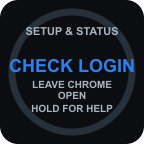
Leave the Chrome window open and short-press Setup & Status while it
shows CHECK LOGIN - or choose Check sign-in in the settings
panel. DeckBridge verifies the session and fills all four meters. When the key shows
READY, close the visible Chrome window - you're done.
A Chrome process stays running in the background after the window closes. That is by design: it holds the signed-in session so the meters can refresh without ever showing you a browser. It never opens a window unless you ask.
How refresh works
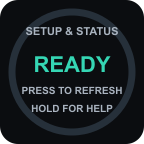
- All four meters refresh together from one background check every five minutes - and after your Mac wakes from sleep.
- Short-press any key to refresh all four immediately.
- Hold a meter key (about a second) to open the real Cursor spending dashboard in a visible window.
- Hold Setup & Status to open help.
- Reset countdowns tick down locally every minute between checks - no extra requests.
Key states reference
| Key shows | Meaning | What to do |
|---|---|---|
| SIGN IN | No Cursor session yet. | Short-press to open the sign-in window (step 3). |
| CHECK LOGIN | Sign-in window opened; session not yet verified. | Finish logging in, then short-press to verify (step 4). |
| READY | Connected - meters are live. | Nothing. Close the visible Chrome window if it's still open. |
| STALE | A routine check failed; keys show the last good values, dated. | Usually self-heals on the next five-minute check. Short-press to retry now. |
| ERROR | Three checks in a row failed, or something needs you (sign-in expired, Chrome missing). | Open any action's settings panel - it names the problem and offers the fix. Sign-in expiry just repeats steps 3–4. |
Clear local session & uninstall
Clear local session lives in every action's settings panel, behind an explicit confirmation. It removes DeckBridge's dedicated Cursor session and cached meter values - and touches nothing else. Your normal Chrome profile is never involved. Run it before uninstalling if you want no trace left, then remove the plugin from the Stream Deck app as usual.